Frank Doorhof
  • Blog (articles)
  • Rent our studio space
  • MAIN SHOP
    • MAIN SHOP
      • Orders
      • Account details
      • Downloads
      • Addresses
      • Lost password
      • Cart
      • Checkout
      • Terms webshop
      • Return policy
      • Privacy Policy
      • Privacy Statement in3. Dutch customers only. When you want to pay in 3 parts
  • IQwire Tether Cables
  • Rogue Modifiers
  • Geekoto Flash and Modifiers
  • Platypod
  • Click Backdrops
  • PORTFOLIO
  • Learning with Frank
    • Dutch workshop agenda
    • Workshops
    • A Year With Frank
    • Online 1:1 workshops
    • 1:1 workshops in English
    • Portfolio review by Frank Doorhof
    • Patreon
  • Support our work
  • Merchandise
  • Digital Classroom LIVE
  • Our YouTube channel
  • Biography Frank Doorhof
  • Services
  • Discounts etc
  • I need help
  • Menu Menu
  • Shopping Cart Shopping Cart
    0Shopping Cart
  • Link to Facebook
  • Link to X
  • Link to Youtube
  • Link to WhatsApp

Tag Archive for: nas

Synology BeeStation: Is this the perfect external drive setup?

23-01-2026/in blog, Reviews/by Frank Doorhof

Demand for storage is growing. Is the Synology BeeStation the perfect external drive?

As creatives, we love to create. It doesn’t matter if it’s video, photos, artpieces or the music we create.
All these files need a place to be, and very soon, you are running out of space on the main drive.
And because it’s never a good idea to store your data on the main drive. It’s easy to end up with a closet filled with USB drives. This is not only a problem when you use a system like Lightroom, but also when you want to create a proper backup strategy. This blog is about the Synology BeeStation.

Storage

As you probably know, before we started the studio, Annewiek and I ran a computer company. And there are, of course, plenty of people who don’t need a lot of storage.
If you work on some documents, surf the web, and read the paper, you probably are more than happy with the internal hard drive.

However, in today’s world, most people use smartphones and shoot loads of images and videos. The problem with digital is that if something is gone, in most cases, it’s really gone. You will be shocked at how many people have thousands of photos on their phone but don’t make backups. Meaning if they lose their phone, everything is gone.

Dataloss

If there is one thing that freaks me out, it’s dataloss. During the 20+ years in the computer company, we have experienced real dramas with people losing every single piece of family history. Simply because they saved all their photos and videos on the internal hard drive. And there is one thing very sure about hard drives.

There is a day they WILL fail; this day can be today, or tomorrow, or in 10 years.
And it will ALWAYS happen when you are not ready for it.

So if you care for your data, always make sure you create at least one backup on an external device or in the cloud, even if you never run out of space.
With smartphones, this is pretty easy; both Apple and Android have solutions that you can use for “almost free”.
But, if you want to backup a lot of data, there are several solutions on the market. Today we are taking a look at the BeeStation from Synology.
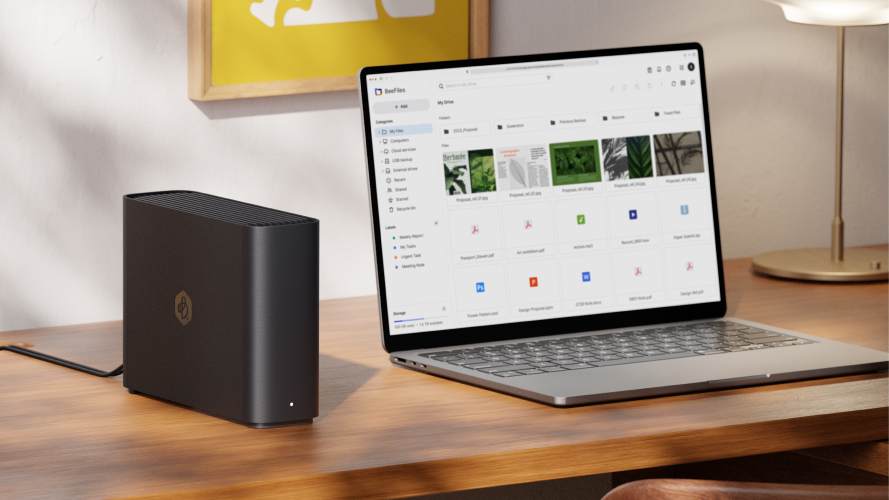
Synology BeeStation

The Synology BeeStation vs NAS

You probably know the name Synology from their NAS systems.
I’ve been using Synology myself for as long as I can remember, and also in the computer company we often advised Synology due to their durability and support.

Let me start by explaining the difference between the BeeStation and a NAS.
Both the BeeStation and a NAS are connected to your network and the outside world. They are designed to be run 24/7. However, there is a large difference between the two. The BeeStation runs with one hard drive where a NAS always runs with several hard drives.

NAS for backup

With a NAS, the data is usually stored spread out over several drives. This means that if one drive fails, you don’t have to panic. Take out the drive, put in a new one, and let the NAS rebuild. Also, when you run out of space, just add a new drive (that is larger than what you replace), and your NAS will add it to the storage pool. A NAS is the perfect backup solution.

In our studio, for example, we use two 8-drive Synology NASes.
In the Synology OS, there are several options to create backups; in our case, we chose to have a mirror setup.
The system automatically starts up at a certain time. The main NAS is mirrored to the backupNAS and when it’s done, they shut down. A pretty foolproof solution as soon as it’s set up. You can even have the system email you when there is a problem.

Clean your NAS

Do make sure you check your NAS ever once in a while, make sure it is off the floor so dust is less of a problem. And make sure that you occasionally clean the NAS, also on the inside/Fans to make sure the dust doesn’t shorten the lifetime.

As you probably guessed, on a NAS, your data is pretty safe; if a drive fails, there is no problem. Howeve,r if several drives fail at the same time, or the NAS dies itself you will still have dataloss in most cases. So, also when you use a NAS, never use it as your only backup. I know it sounds expensive, but always ask yourself, “If I lose all my data, how much would it be worth to have it back?” I can almost guarantee it’s a lot more than an extra drive/NAS/cloud storage.
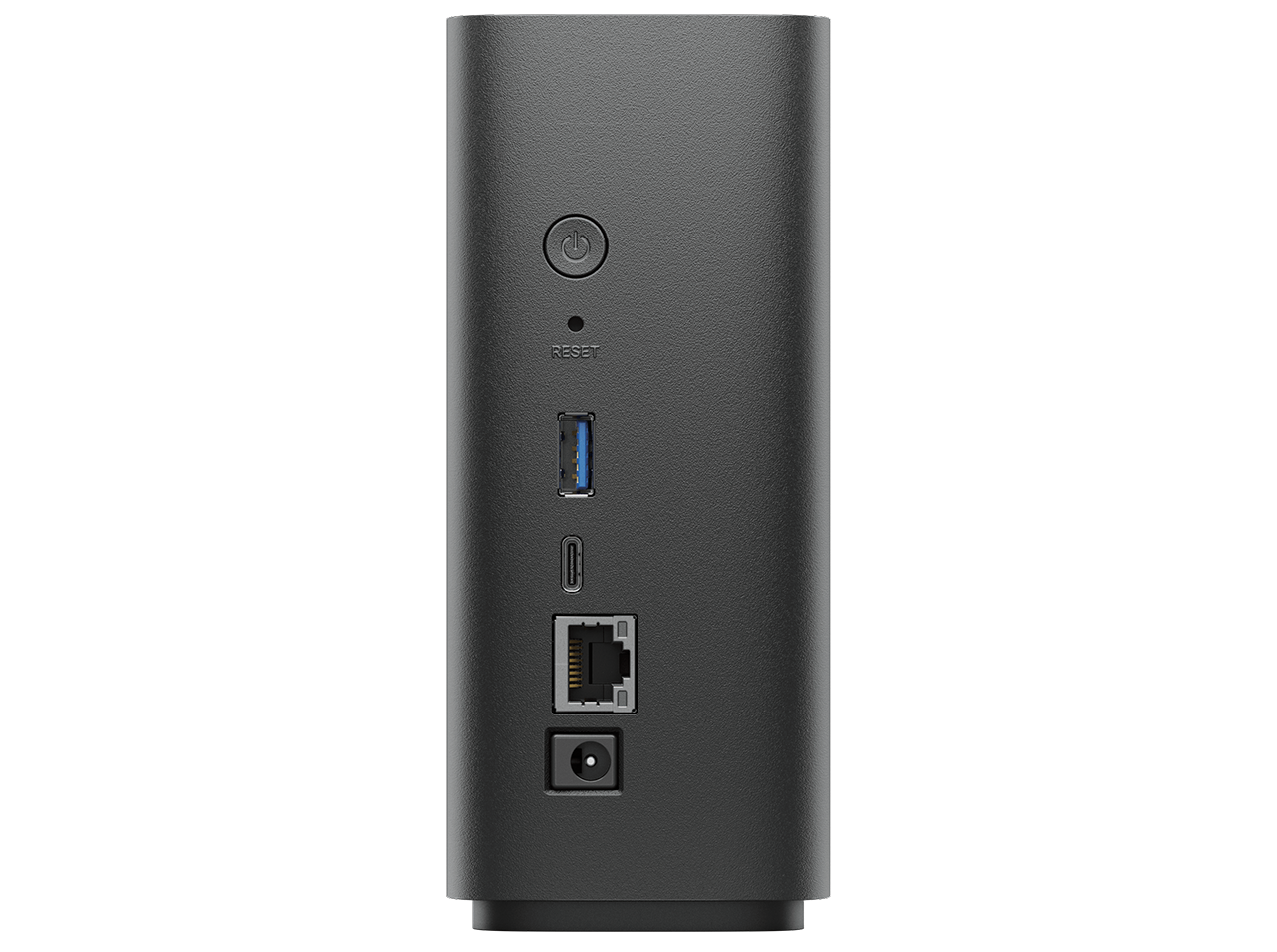
close up of the Synology BeeStation

The Synology BeeStation

When I saw the first announcements of the BeeStation it immediately caught my attention.
In fact, I believe this is the perfect device for a lot of groups, due to its many features and super simple OS.
Let’s take a look at some of the ways you can use your BeeStation, and how we use it.

Backup from Phones and Time Machine

Annewiek and I both have iPhones, iPads, and MacBooks.
If there is one thing that Apple really nailed, it’s making backups.
For our MacBook,s we use TimeMachine which you can use with an external drive or a NAS system.
Annewiek and I have both created a TimeMachine backup on the BeeStation.
This means that as soon as we start our day, the Mac is synced with TimeMachine without having to connect an external drive. This not only reduces the chance of “forgetting” to create a backup, but it also means we have a lot more points to go back to due to the continuous backup process.

For photos made on our phones/iPads, we use the Photos app.
The app is installed on the phones and BeeStation, which means that as soon as we shoot images or video, they can be uploaded to the BeeStation.
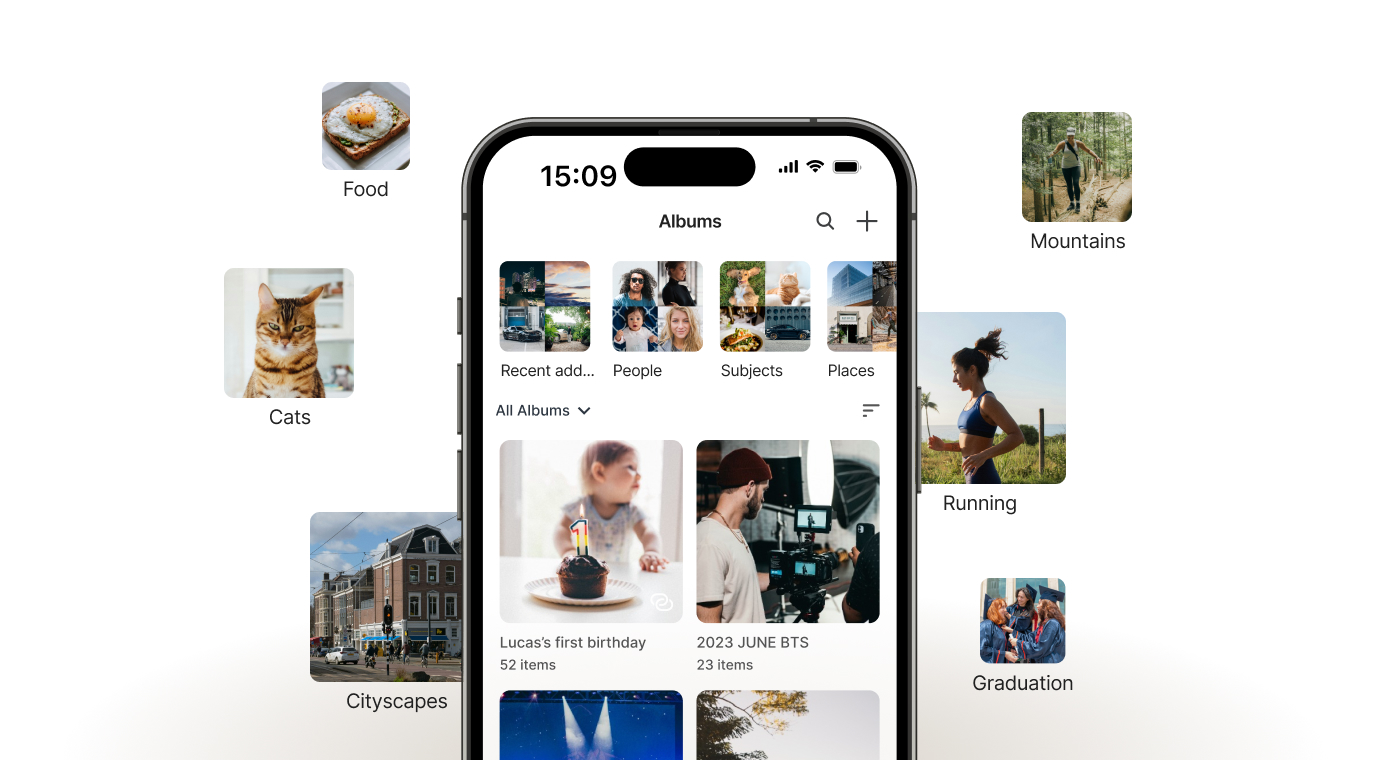
synolgy app, also usable with the Beestation

Sharing memories or work

The Photos app is not only for backup.
In fact, in the last few years, the app has grown into a full ecosystem for photos/videos.
First of all, you can of course create your own albums or use the AI functions, which work pretty well, to be honest.
But you can also choose to share different albums with different people.
For example, when we travel, we love to keep our parents and friends updated. With the Photos app, it’s very easy to create albums where we back up everything from our phones and select the images we want to share with that group. It’s a fun way to keep the family updated.

And of course, you can also use the Photosapp for assignments, share ideas like moodboards, or use it as your portfolio.It’s a lot more powerful than most people think.

Backups on the Synology BeeStation

Besides Photos and TimeMachine, you can also use the Synology BeeStation’s own sync system to back up files or whole drives.
I’m actually using the BeeStation sync for my external 4TB SSD drive, which I have connected to my MacBookPro. If your OS doesn’t support TimeMachine the BeeStation sync is a really nice alternative; it’s been running very smoothly so far.

Each Synology BeeStation device includes one 3-year Acronis True Image Essentials license for one computer, if you want yet another backup solution.
I think we can say that Synology got you covered with backups.

But there is more
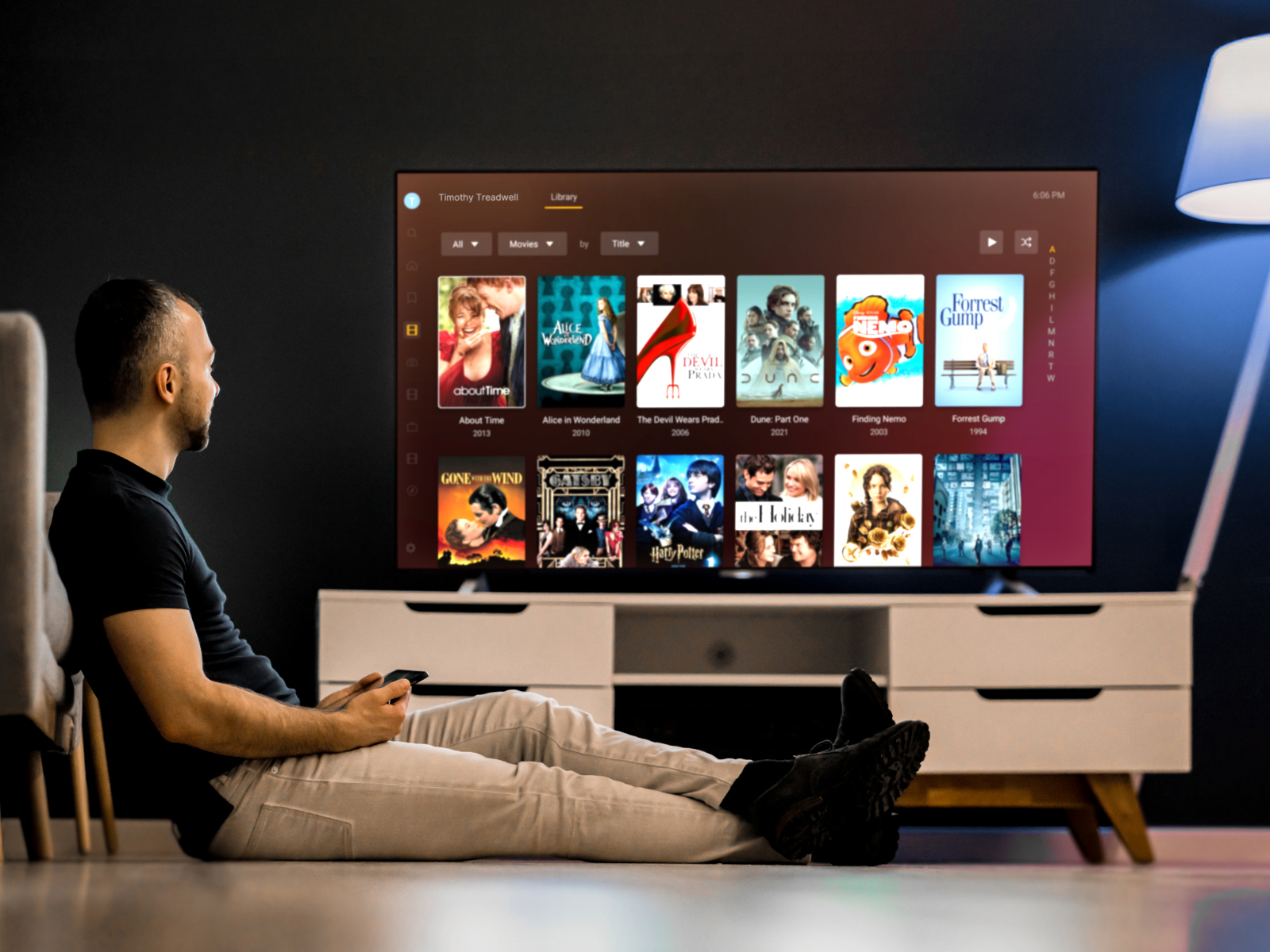
Using the Synology BeeStation in your Home Theater

We live in an age where we can experience movies in a real cinema-like experience.
So the demand for ways to watch and store our movies has also grown over the years.
You can, of course, stream your entertainment via online services like Netflix. But often we have collected loads of DVDs, BDs, and “downloads”,  and because that material is often not available online, it would be great if there was a solution to browse your catalog, read about the movie, and start the movie.

Loads of people have digitized their DVDs and BDs and use PLEX to browse, access information about the movies, and start playback.
The Synology BeeStation supports PLEX integration, which makes it a great centre for your Home Theater.
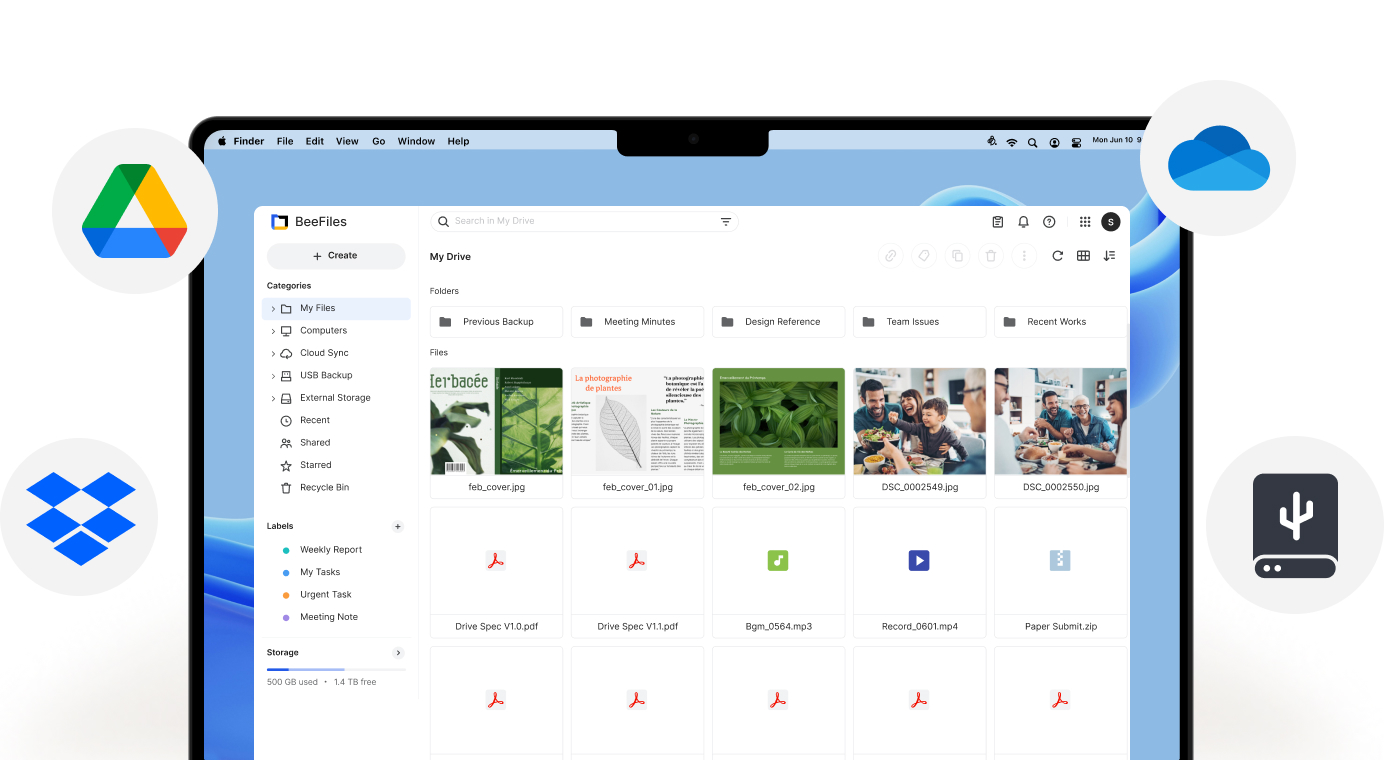
Synology BeeStation as your personal cloud storage

Personal Cloud storage

There was a time when the term “cloud” or “cloud storage” had the same magical effect as AI today.
But with solutions like the BeeStation, having your own personal “unlimited” cloud storage is no problem anymore. With the BeeFiles app, you can always access your files, upload, and share.

Seeing the situation in the world today, I think it’s wise to use a personal cloud instead of an online cloud service for data you would normally store on OneDrive, GoogleDrive or Dropbox. BeeFiles is a great alternative that I can highly recommend.

The Operating System itself

I’m one of those nerds who can work out software and gear without needing a manual in most cases. But don’t let me fix your car. But we also know people who are the opposite, or think about our parents/grandparents, who probably also shoot a lot of images and videos on their phones.
Giving them a NAS can be problematic; the setup can be complicated, and there are often too many features and procedures to keep everything working perfectly, and if it goes wrong…. long story short… enter the Synology BeeStation.

The OS is super simple.
Setup is almost 100% automatic, and after tha,t it’s a matter of simple screens with clear instructions.
If you make a mistake, it’s really 100% your own fault. I can vouch for that because I made a mistake, because I literally overthought the system.
After turning off my brain and starting agai,n it all worked flawlessly, to prove how foolproof the setup is.

Back up your Synology BeeStation

You can use the USB connection on the back of the BeeStation to copy files from an external drive to the BeeStation for a faster backup. Especially with a lot of smaller files, a first-time backup via the USB connections saves a lot of time vs over the network.
However, I would highly recommend buying a proper external drive with the same capacity as the Synology BeeStation and using that as a backup drive for the BeeStation. This way, you have a pretty good backup strategy.

Is it all positive?

Yes, pretty much.
During my review, I’ve used the Synology BeeStation extensively and found it to be very similar in usage compared to the professional Synology NAS units I’ve been using.
Due to the simple setup procedure, I think it’s the perfect device for people who want something that is simple to set up and maintain but doesn’t really limit them in use cases.

Yes, for creators!

But also for creators that demand speed and being able to share and access their data all over the world, but also want to make sure the data the images they shoot on location are safely backupped. What I didn’t mention yet is that the Synology BeeStation is a great performer when it comes to speed. Synology really did their best here to create a device that will fit a really broad range of people from 5-105 I dare to say.

The Synology BeeStation is available in 4TB and 8TB versions.
When you use it for several TimeMachines and backups of photos I would highly recommend getting the 8TB version.


Read a Dutch interview about Synology in Shoot.be

Check this video from 2021 about the use of a Nas 
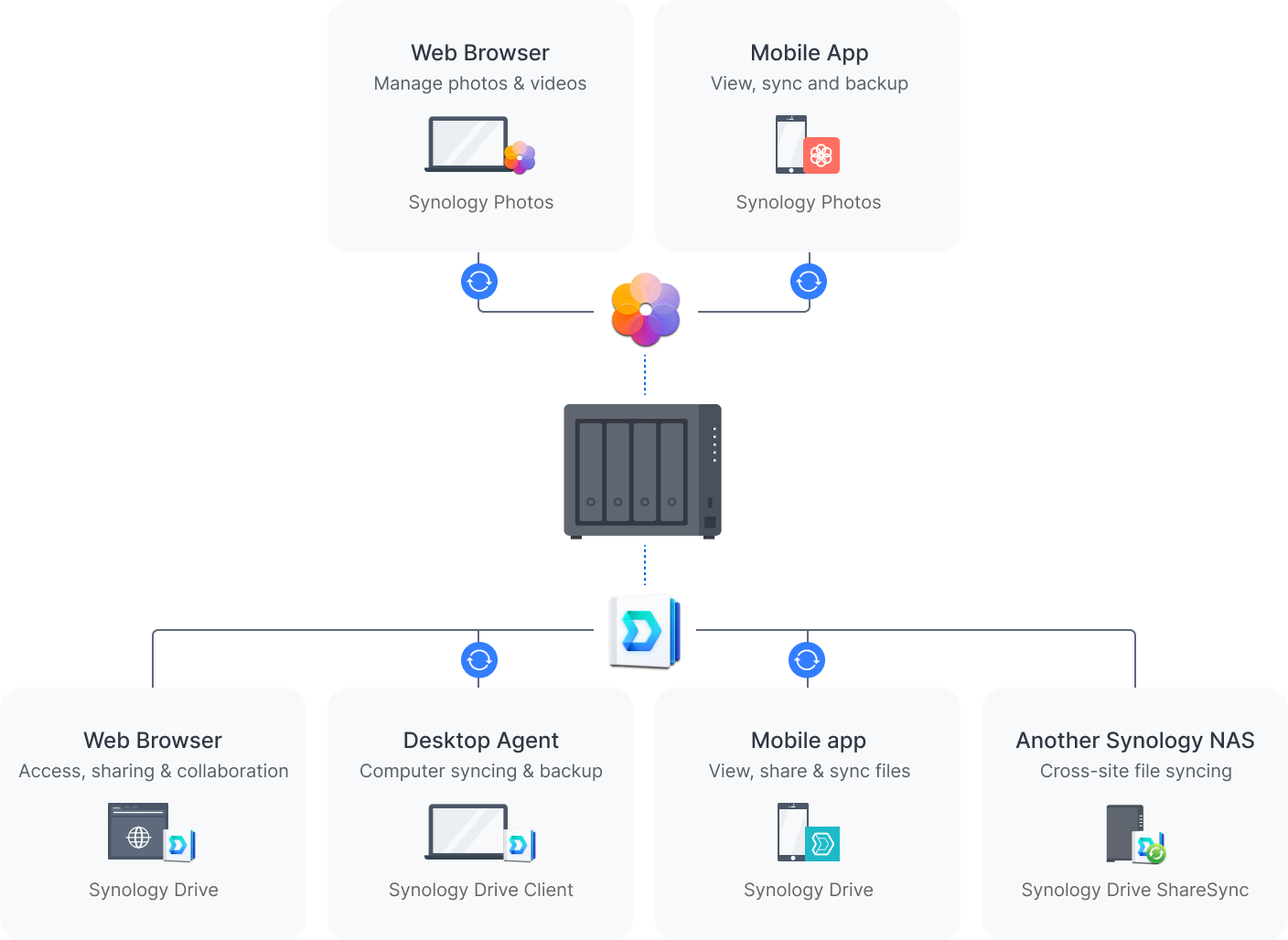
In this blog I show an easy local way to backup 

https://sy.to/pk2jp (one of the Synology partners)

https://frankdoorhof.com/web/wp-content/uploads/2026/01/beestation-5.jpeg 500 889 Frank Doorhof https://frankdoorhof.com/web/wp-content/uploads/2015/03/studioFD_Logo-1FV.png Frank Doorhof2026-01-23 17:14:192026-01-27 18:02:40Synology BeeStation: Is this the perfect external drive setup?

What if you lose all your data…. better prevent it now

24-04-2024/in blog, Visions and technique, Webinars and instructional videos/by Frank Doorhof

The main thing that hit me

When Annewiek and I ran the computer company one of the things that always hit me were the moments when people came in our store because they lost all their data.
Sometimes they still had hope because only their C: drive crashed, but in most cases they didn’t realise that their D: drive was actually just a partition on that crashed drive. In some cases we could get some data back, but it was never a 100% perfect recovery, and especially with file names, dates etc. it often meant we got stuff back, but it was a lot of work for us and them, meaning a huge bill.

The weird part is that they were always happy to pay, even if we got half back.
Now those invoices were often higher than a solution to prevent it all.

Today I wanted to share a video with you in which I explain how we have our backups setup.
I hope it will trigger you to start taking backups serious, unless you already do, in that case… well done.

Dataloss is something we all will experience in our life, it also happened to us a few times, luckily never a lot, but even with a good backup strategy its always wise to automate things as much as possible and make sure you are checking your backups.

In the video I talk about automatically downloading your photos, but also the more complicated setups, and also which drives are best for usage in a NAS.

https://frankdoorhof.com/web/wp-content/uploads/2024/04/Prevent-data-loss.png 720 1280 Frank Doorhof https://frankdoorhof.com/web/wp-content/uploads/2015/03/studioFD_Logo-1FV.png Frank Doorhof2024-04-24 17:00:112024-04-12 12:12:03What if you lose all your data…. better prevent it now

Backups and a new NAS release

17-11-2022/in blog, News etc, Reviews/by Frank Doorhof
As you all know I’m a big advocate for creating backups, Annewiek and I ran a PC shop for over 20 years and the misery that dataloss can give is something you never want to experience. We had people in the store literally crying because they lost everything. Trust me you never want this to happen. And it’s in essence very easily to prevent.
 
We all probably lost a few photos or videos and we all know how that feels, imagine losing all your work and images of loved ones, yes it happens daily.
 
So besides storing images on your internal drive (the dumbest thing you can do) it’s important to create a proper backup system. By the way, if you use a laptop and you see a C: and D: drive, this is NOT storing your images on a separate drive, it’s the same drive but divided into two (or more) partitions. It sounds ridiculous but we had several customers who used laptops this way and thought they were safe if the main drive crashed. 

The safe way
Remember that NO solution is 100% fool proof, and in the end YOU are responsible for making the backups, or at least automate the process.
My advise is to use a DAS next to the computer, this is a system that uses several drives to make sure that if one drive fails you don’t lose any data, as long as you replace that drive. It’s a super easy way to never think about storage space again, if it’s full you just replace a drive, and when you can’t add space anymore… well well done that’s a lot of data, now buy a second unit or a larger unit and connect them.
But it doesn’t stop there.
 
There should always, always at least be a second backup. Those backups are often placed on a NAS system.

The difference between a DAS is that a DAS is attached directly to your system and a NAS is on your network, the NAS also has it’s own IP address in your network.

The main advantages of a NAS is that you can work on it with several people, and even remotely.


Synology
During our years in the computer store we sold several brands, but the brand I always came back to as a problem solver or simply the best in its class was Synology.
So what do we do with our NAS?
We use several in our studio and home.
Mostly of course they are used for storage of our photos/videos and at home for my music.
The thing I personally really love about the Synology products is that even when you don’t know anything about setting up a network or external access Synology got you covered. It’s almost a matter of 1,2,3 to setup external access to your NAS so you can access your data from anywhere in the world. (safely of course)

But there are also a lot of apps that will make life even easier.
One of the apps we use a lot is the amazingly handy Photos app for example. Never worry about your photos on your phone anymore, as soon as we enter our home the phone starts to upload all new photos to the NAS. The only thing you have to do it download an app on your phone and make sure it’s active. (remember nothing is 100% safe unless you monitor it yourself). You can even create different albums that are accessible for certain people. For example a dedicated album just for your family.

Another thing we have setup on our system is that our Synology in the studio is syncing the retouched photos to our Synology at home, so we have the retouched photos also in a separate location and a separate database/library in Lightroom, something you can’t easily do with online backups (we also use SMUGMUG for online backups).
You could run a whole website from your NAS, but that’s something we don’t do (at the moment), what we did setup is special customers areas, using the double NIC on the Synology we’ve created a separate access to the NAS that is not connected to our home network, this speeds up the external access considerably, and makes it possible for clients to download their files straight from our NAS, especially for video projects this is a HUGE time saver, uploading 120GB to an online service and letting your customer download it sounds easy enough but customers often don’t want to install the app needed for that access. By setting up a client access area we create a totally separated part on our NAS which contains all the data for that client, they can access it and download it, and when we give permission also upload materials, especially with my music (hobby) this is awesome for collaborations between musicians.

A Synology NAS is way more than just a few disks that you use for storage, it’s (when setup correctly) a total eco system that is great for yourself and your customers, in all honestly we could not operate our business without a proper NAS.

Synology over the years have been a very reliable partner and the quality of their support and gear is without a doubt in a league of their own. So if you’re in the market for a solid and trusted backup solution, make sure to check them out.

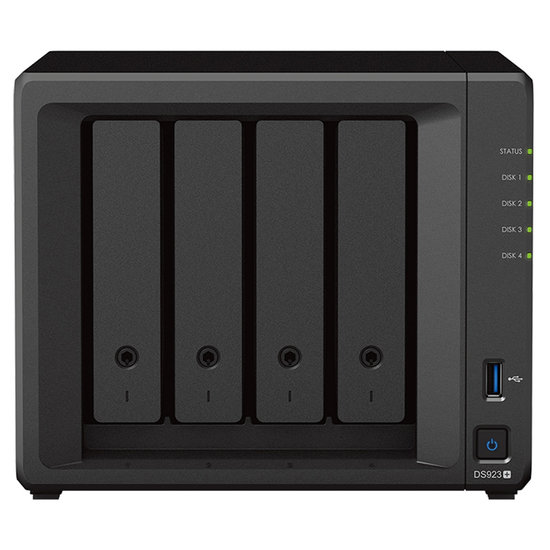
And having said that… Synology just released a brand new NAS, the diskstation DS923+
This is a very nice NAS for anyone that uses the system for photography/video and music creation. It’s very fast and can store huge amounts of data, and you can extend the system with extra bays/NAS units. It’s really a system you can grow in. And I think that’s a vital part of what we should all work towards, not replacing a NAS because it’s too small, but being able to extend the NAS with extra bays or connecting them to other units is vital for business I think.

But let’s not bore you with all the details, take a look at this new NAS here.
https://www.synology.com/en-global/products/DS923+

I’ll be testing one very soon and keep you all updated about it, but in all honesty I expect it to just work, like they all do 😀

One more thing….
I already mentioned this, but lets do it again.
A NAS/DAS or even a harddrive is something you store valuable information on, and like with bitcoin, if you lose the data it’s gone forever with no means to recover it. Luckily you can always use recovery software or for example the recovery service of your manufacturer, but best is to just prevent data loss. Here are some very simple tips.


  1. Harddrives
    use NAS drives, these are designed for the use in a NAS and will run much longer than a normal drive.
    also don’t buy all your drives from the same supplier. Make sure if you need 4 drives you order from at least 2 different shops. If there is a fault in a batch it’s often in a series of harddrives. Luckily it doesn’t happen a lot, but it’s hardly any extra work to just order from two stores, or a week apart.
  2. Brand
    I know price is important, but in the total cost we are often talking about very minor differences, and let’s be honest… always ask yourself the question “how much would I pay to get all my data back?” compare that to the extra costs between a very good NAS and a NAS that is sold at the local grocery market as “weekend deal”
  3. UPS
    If you take care of your NAS it will serve you for a long time.
    If you live in an area with peaks in the power, or black/brown outs it’s very wise (almost vital) to invest in a UPS or filter for the power. The UPS will keep the NAS running when the power goes out, preventing harddrive crashes, often it’s coupled with software that will shut down the NAS nicely.
  4. Use the scheduler
    In most NAS system you will find a time scheduler, I know a NAS is designed to run for days and weeks and years, but it doesn’t make any sense to keep it running when you only use it in the weekends or only during certain days. Just use the scheduler and let the NAS also take some rest now and than.
  5. Use the vacuum cleaner
    Maybe the most important one.
    Just for fun, power down your PC/Mac/NAS etc. and take a look at the fans and air in/out takes. I think you will almost immediately understand why some systems just shut down after a few years. I would HIGHLY advise to clean the fans at least once a year, and if you dare also open up the case and clean the inside. Better is to just do it every month. Trust me it’s vital.

I hope you guys enjoyed this article.
Feel free to leave comments on our social media, or email us questions.

To be 100% open and clear.
We have been working with Synology for a long time in our computer business, when I started our studio we also used Synology. Later on I became one of their ambassadors and have been ever since. As with all the advise I give you guys, the products I promote I also use myself.

https://frankdoorhof.com/web/wp-content/uploads/2022/11/synology-ds923.jpg 550 550 Frank Doorhof https://frankdoorhof.com/web/wp-content/uploads/2015/03/studioFD_Logo-1FV.png Frank Doorhof2022-11-17 11:10:052022-11-17 11:10:05Backups and a new NAS release

Newsletters

Subscribe to our newsletter for updates, discounts, and much more

English news letter
Dutch news letter

Interesting links

Here are some interesting links for you! Enjoy your stay :)

Snel naar

  • Blog
  • Learning with Frank
  • News etc
  • Reviews
  • Shop products & books
  • Contact

Contact

Studio Frank Doorhof:
Constructieweg 8
8305 AA Emmeloord

The Netherlands
+31-6-14522327

Or Email : info@frankdoorhof.com


© Copyright 2000 - - Frank Doorhof
  • Link to Facebook
  • Link to X
  • Link to Youtube
  • Link to WhatsApp
Scroll to top Scroll to top Scroll to top