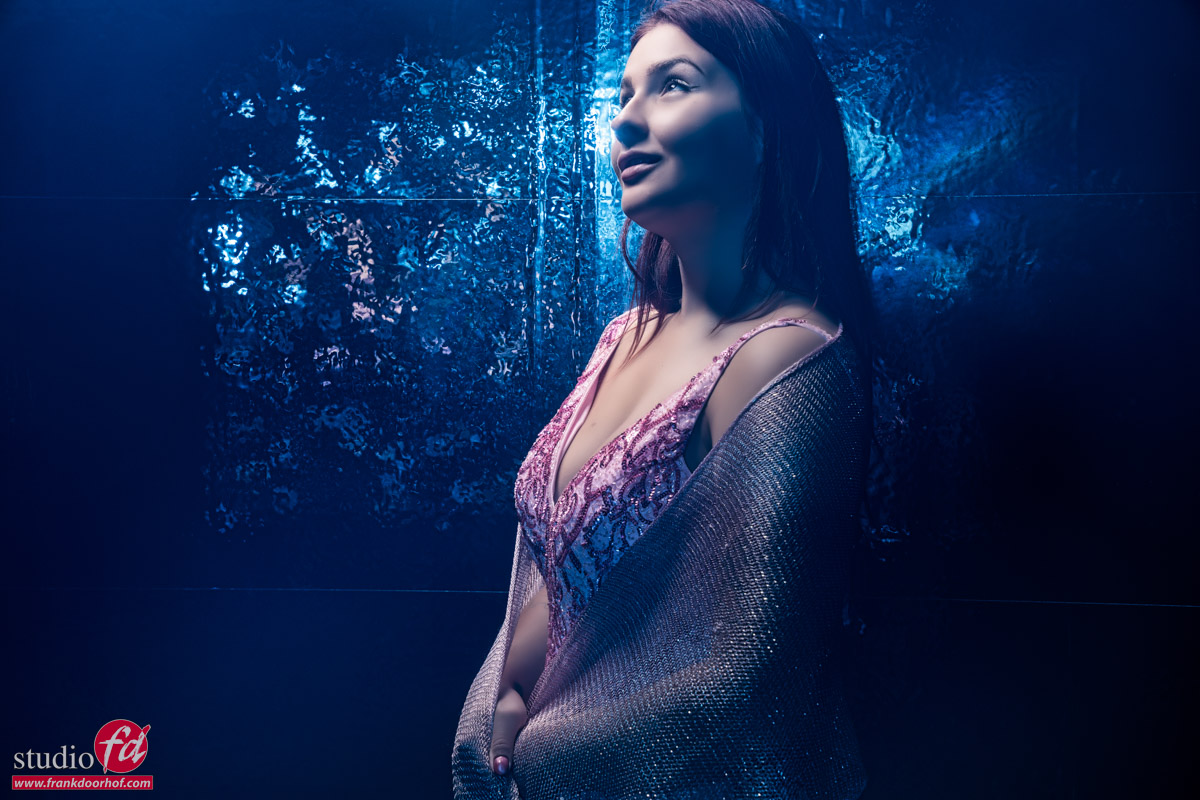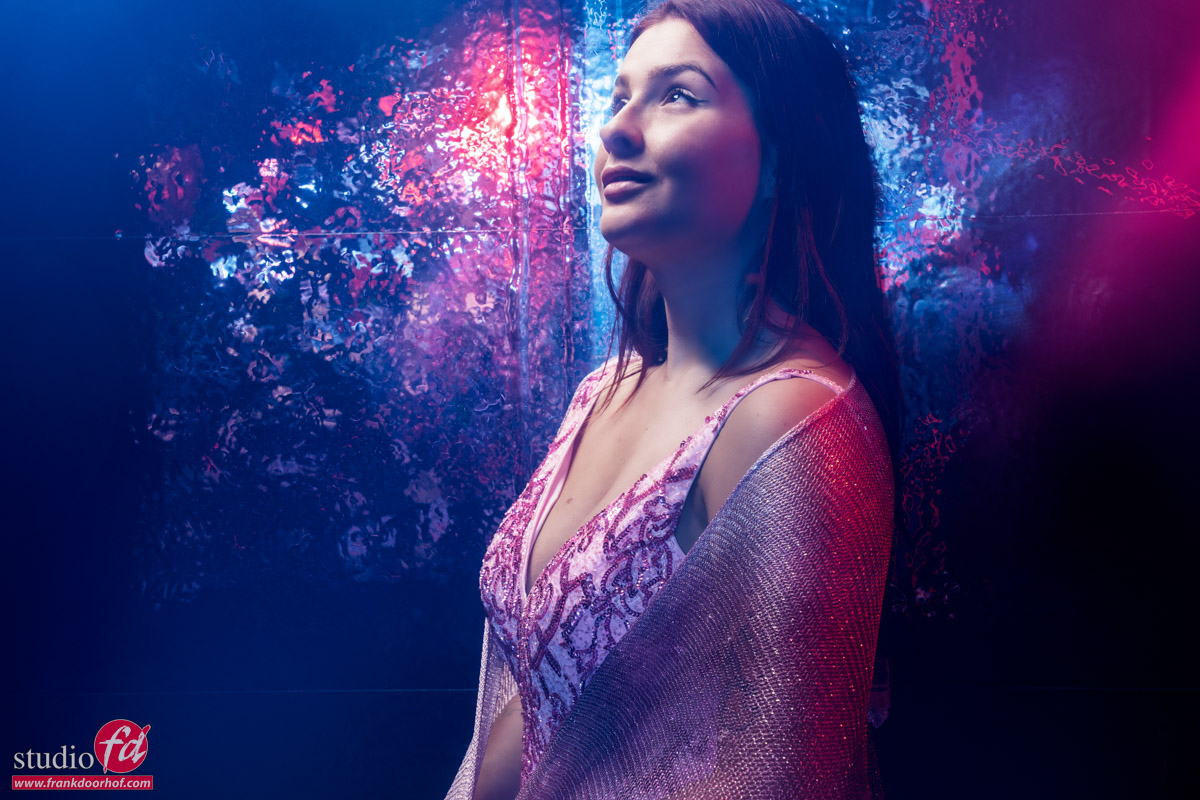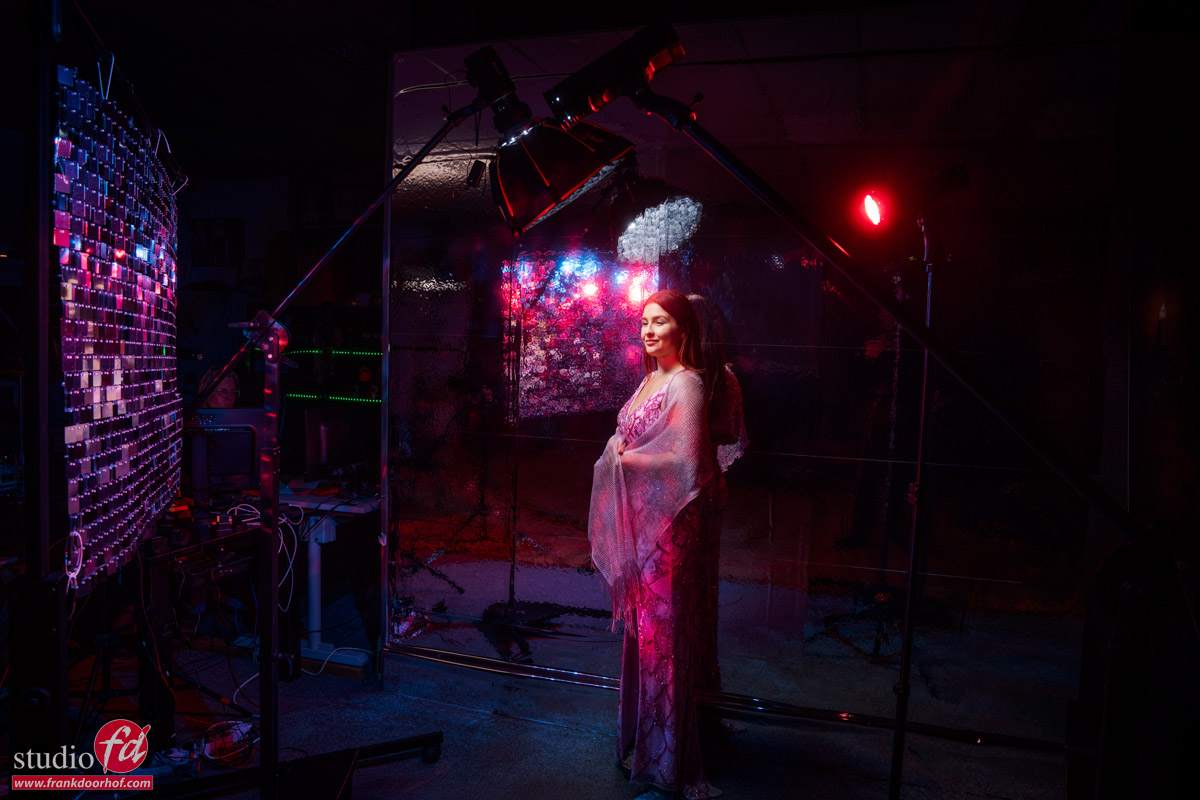
Sit down and listen it’s about workflow in Lightroom
Workflow is key. That is why I use Lightroom
I absolutely love photography, and retouching is a nice, relaxing process for me.
During the workshops, I’m often a bit surprised by people telling me they don’t use Lightroom because it’s too difficult.
Or they are unsure what the perfect order is for developing a RAW file.
So today, we are doing exactly that. Let’s walk through the workflow and how it works.
How was this triggered?
Recently, a friend of mine showed me a diagram for the “perfect” workflow in Lightroom.
It started with merging images in HDR/Panorama, then noise reduction, and then adjustments.
In all honesty, this triggered the blog post: noise reduction as a first step…
Your RAW developer is not dumb
So my advice is very simple: follow the workflow in your software.
Unless you know what you’re doing, of course 😀
Now this could be the end of the blog post, but I want to dive a bit deeper so you also understand the way I build a workflow.
Do remember that a workflow is very personal, so I try to keep it as mainstream as possible.
How I work in Lightroom: step by step
Importing images from my camera
The first thing we do is, of course, import the images.
This is already a vital step, because it can be done in a few ways.
Personally, I strongly advise copying your images to external storage (like a NAS) and using Lightroom to import them by ADDING them, not copying.
This way, the images always stay in the same place, even if Lightroom might one day crash, and you lose your database in a worst-case scenario.
Make your base right
After this, it’s really just following the workflow.
The first thing I always do in a workflow is make sure my base is correct.
This means that I will crop my images and, if needed, straighten the composition.
This is also the part where I will boost my shadows to insane and look over the image for any problems that I take out with the healing, clone or Ai.
After this, I reset the shadow slider, of course, and continue.
The reason I’m boosting the shadow slider is to make sure I don’t miss any details in the darker areas of the image.
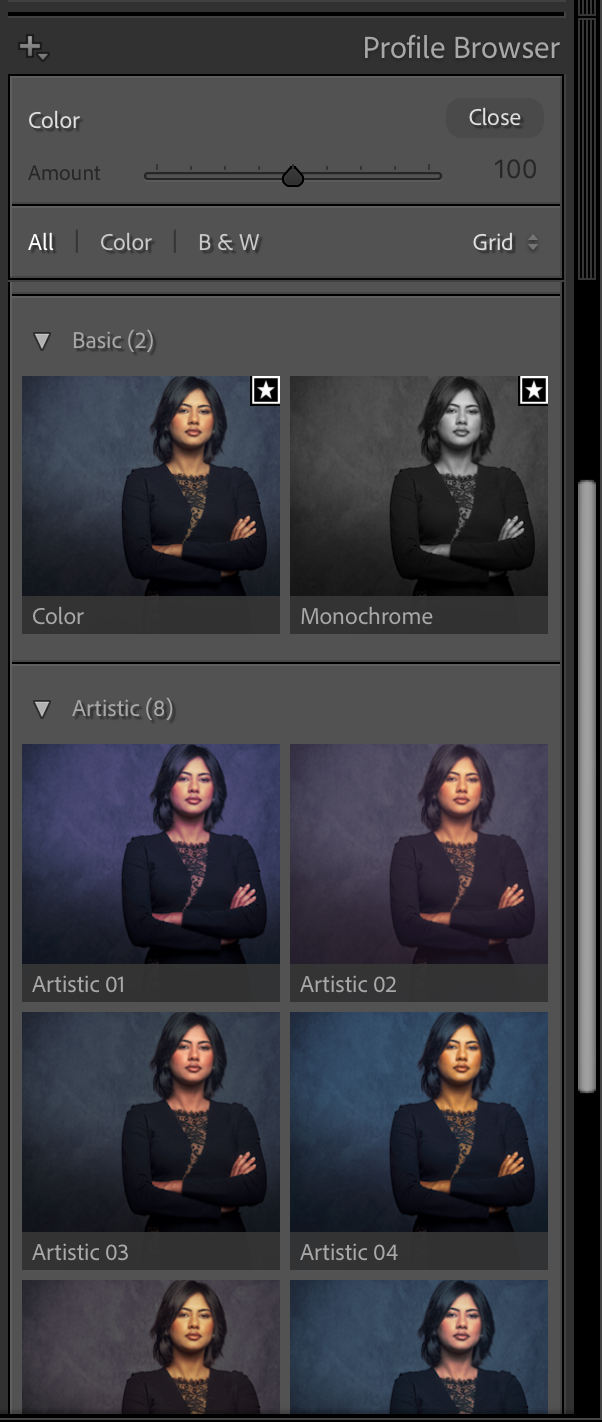
This is where you select the basic look for your images, or you select the created profile from a colorchecker to get accuracy. This can be a creative section or pure accuracy.
Let’s take a look
The first thing you do is select the profile you want to use.
This can be a profile from a colorchecker you created, or just one of the Adobe profiles.
We now have the RAW file all set up for the rest.
You can now, for example, merge your images for HDR/Panorama.
In the next section, we adjust the basic image.
Here we set the white balance and add some contrast to your image, play with highlights and shadows, etc.
Color balance can be set with the picker by clicking on a white balance card (and syncing this setting to your other images).
Or you can select one of the settings, or play around with the sliders.
Personally, I always use a white balance card to set the color balance.
Not because I always keep my color accurate, but because when the base is always the same, I can very easily create presets or automated workflows where the end result is always predictable.
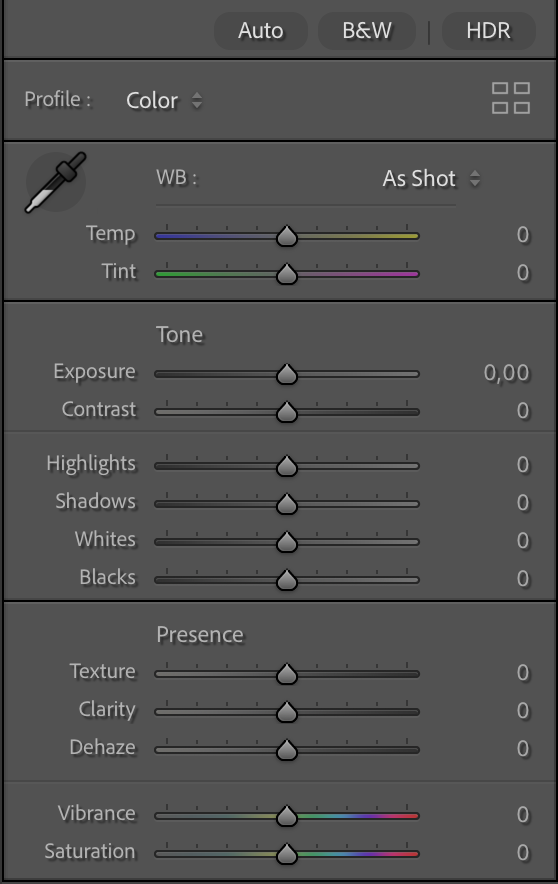
This is where you make the first adjustments to your images, the best you set up your lighting, the less you have to do here, but adding some contrast is with RAW files something we do often have to add.
Colors
After this, I mostly adjust the colors.
This can be done via curves, sliders, HSL, etc.
This is not a part for the accuracy, but already for the look I want in my final results.
This is the part where we build the look for the shot.
Sharpening
Now it’s time for some sharpening.
In Lightroom, we have very powerful options in the case of texture (fine detail) and clarity (a more contrast-based look)
In this section, you can also adjust the look of your image with Dehaze, and trust me, you don’t have to use it to control haze only; it can be an awesome creative tool.
After sharpening, I’m mostly done with my image.
I’ll go through the complete process again, starting at the develop stage and fine-tune contrast/shadows/highlights, etc.
When I’m done with everything, only then will I start denoise, if necessary, of course.
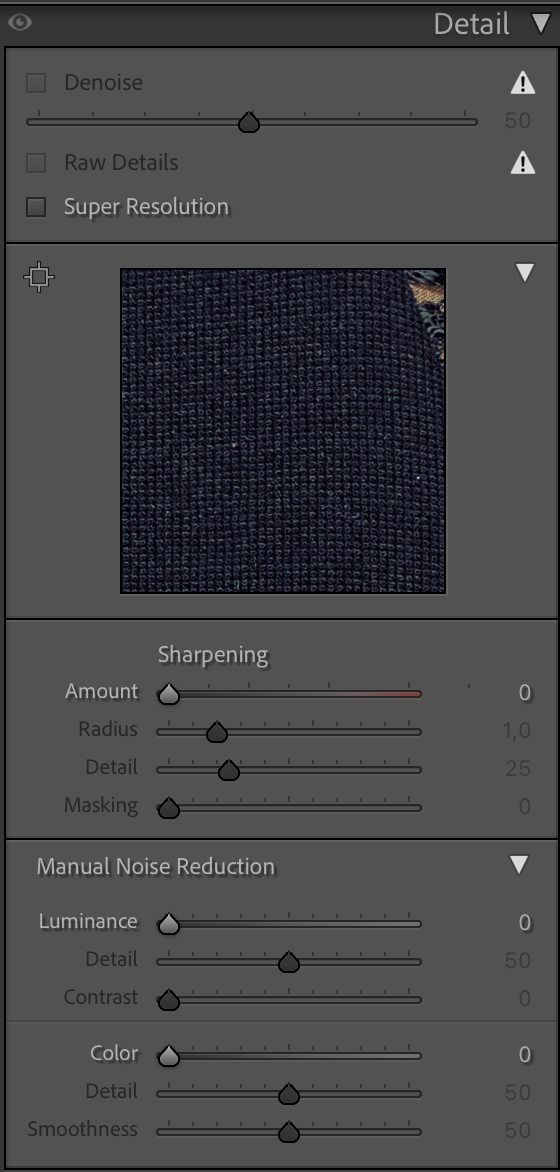
The final step in the adjustments workflow is Sharpening, upscaling, and denoising
Why denoise not at the start?
You can, of course, run denoise at the start of your process.
However, when you open up the shadows, sharpen your image, play with colors, use super resolution, etc. ALL these settings can and will introduce noise.
Meaning you keep going back and forward to your denoise, in all honesty, for me, that doesn’t make any sense.
And brings me back to the start.
Lightroom and most RAW developers have a certain workflow for a reason.
If you are starting out with software like this, it can be incredibly intimidating when you see all the sliders and often names that might or might not ring a bell.
My advice is super simple… follow the workflow from top to bottom and ONLY when you start to feel confident, it’s when you can start to skip parts, or jump towards parts.
Lightroom is so incredibly user-friendly I’m sure you can get awesome results when you follow the standard workflow.
But Frank, there is more…
Yes, after this, there are several other options.
But they don’t influence the noise anymore.
However, they can be important.
First of all, you are probably aware that not all lenses are created equal.
In essence, no lens is perfect, but luckily, Adobe created a huge database of lens correction files that can really change the look of your images positively.
If you have never tried this, make sure you check it out.
In this section, you can also adjust the image in a very flexible way.
“No more” distorted buildings due to wide-angle distortion and a lower angle.
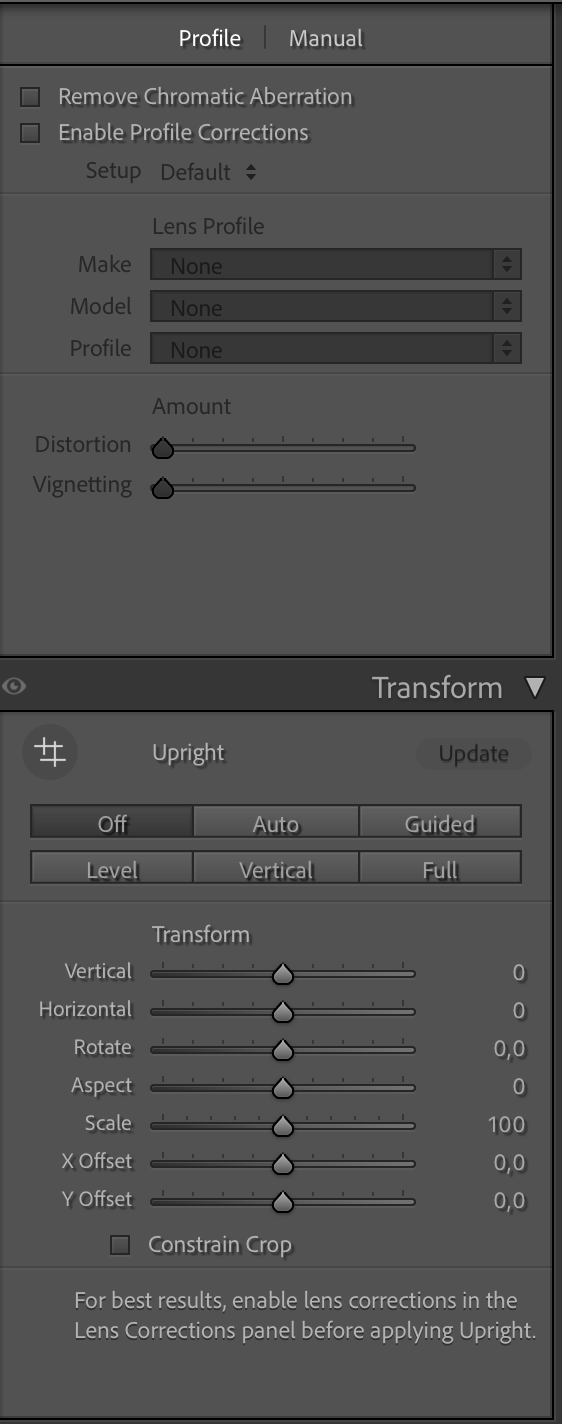
Choose your lens and voila
But you can also play around with lens blurs.
Which can be used for some cool, creative effects. Just play with it, and you’ll see the differences the bokeh makes.
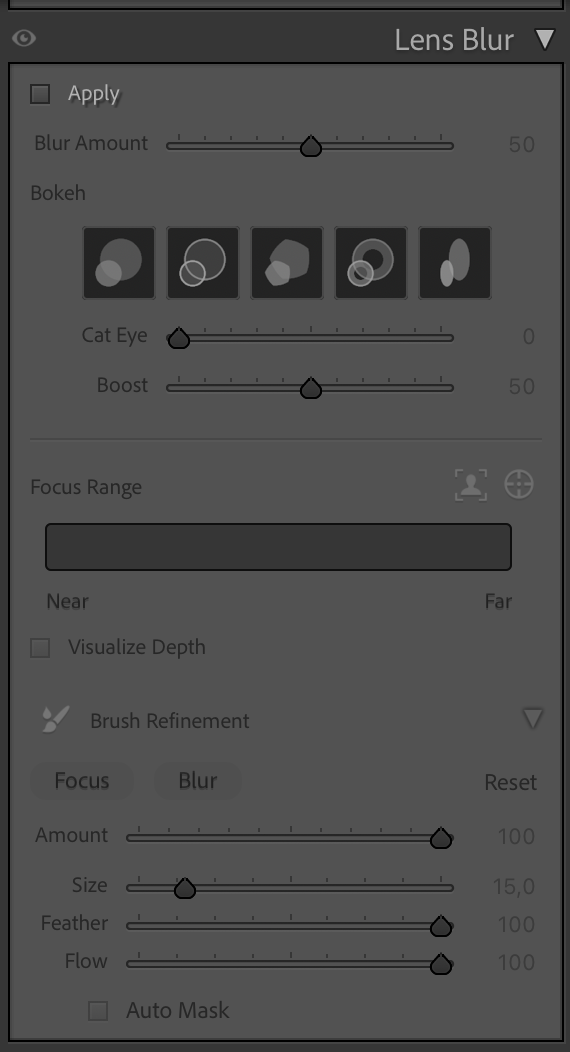
You can use this to create some really nice effects in your images.
Vignette
This is also the part where you can add a vignette to your images, which really draws the viewer in.
Or you can use this to take away vignetting added by your lens; I think it was originally intended for that. To be honest, I use it mostly to add a general vignette on the photos, hardly visible, but when you take it out, you miss it.
(BTW, you can also create a vignette perfectly fitting for your subject with the local adjustments, just paint a feathered circle, inverse selection, and use exposure to create the perfect vignette. I also show this in the video.
By the way, do you see that adding grain is down here in the workflow, AFTER denoise….
Makes sense, right? But one thing that you might not know, or have tried yet, is to add grain to an image that was very noisy and after noise reduction looks a bit like a painting. By adding some grain, you can bring those images back to life. In most cases, our brains are sometimes easily fooled.
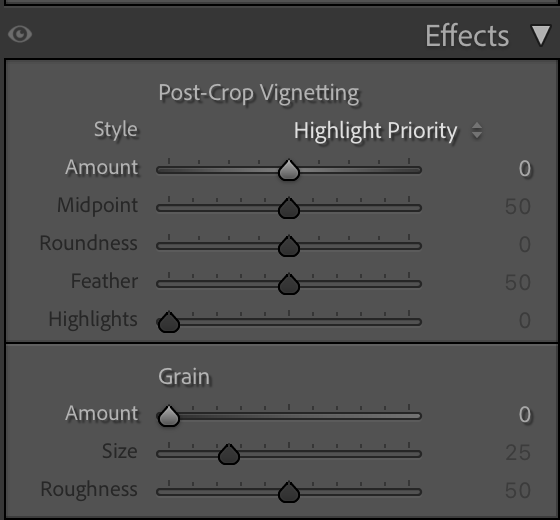
Here, we can add or remove the vignette and add grain, if needed.
Conclusion, Workflow = Lightroom
Lightroom is an awesome addition to every workflow.
As with most RAW developers, they created the software with the workflow that works best in mind.
This means it’s often best to just sit down and slowly work your way down, try every setting, and see what it does.
I’m 100% sure you will get used to using Lightroom in a few hours and feel right at home in a few days, and say you never want to be without it in a week or two 😀
And because videos are sometimes easier, I have recorded a 2-hour Lightroom for beginners Digital Classroom.
And if you want even more information about Lightroom and Photoshop, get my 7.5+ hours tutorial via our webshop
If 7.5 hours is a bit too much, I also have a shorter video 100% aimed at Lightroom
And if you already use Lightroom, you can also order my full Lightroom Preset pack here.
It’s the same pack I use myself.