Reviews on gear and software

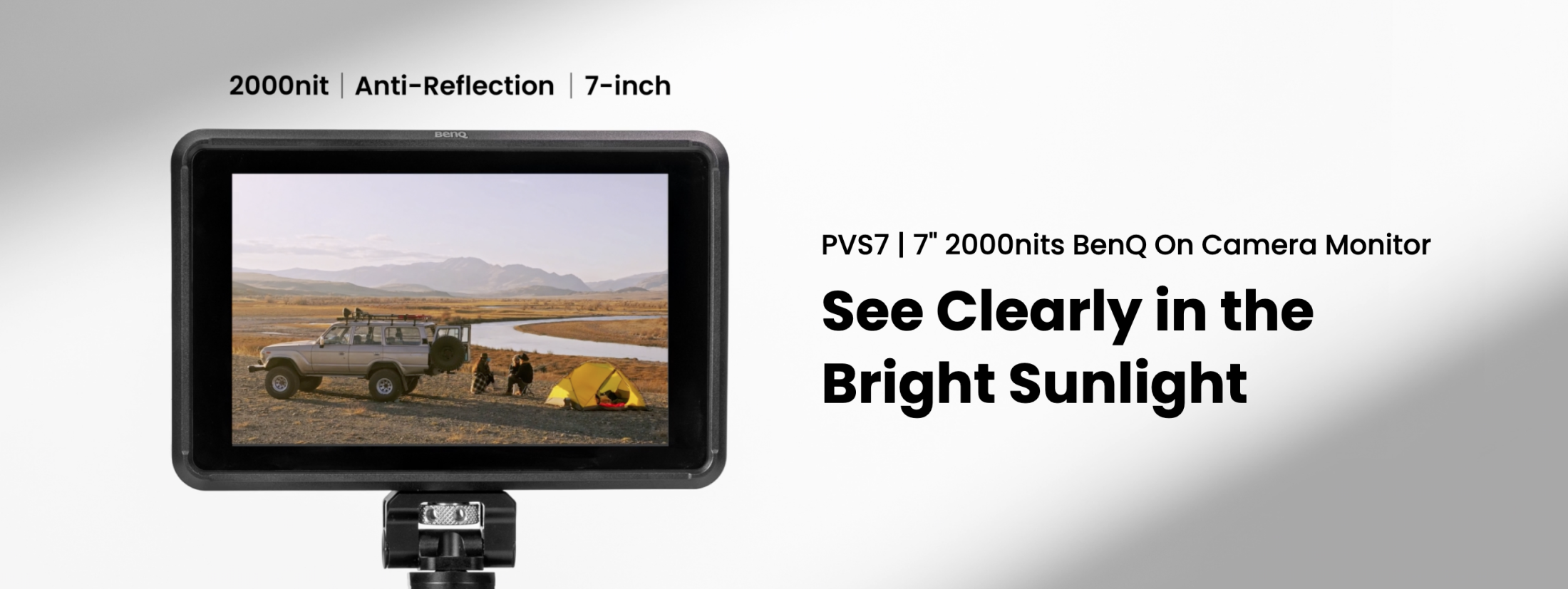
BenQ PVS7 working on location with video

You know you need one! BenQ PVS7 On-Camera Monitor

If you have ever tried to shoot video on location, you know the problem. The screen on your camera is very small.
Don’t get me wrong, the new EVFs and LCDs are awesome, but it’s almost impossible to judge your video in a way that gives me the feeling I’m “safe”. So this blog is about the BenQ PVS7 On-Camera Monitor

BenQ PVS7 On-Camera Monitor

One solution is to beam the video signal to your phone or iPad, but not all cameras support this. And the connections are often not stable enough for a professional work environment. And that’s what we’ll talk about today. I’ve seen a few reviews online that clearly judge a product from a consumer standpoint, and not understanding the needs of the professional. Who are often, indeed, willing to spend a lot more money for one feature. So, in this review, I try to give an explanation of the features that the PVS7 delivers and why it’s important in a pro workflow.

BenQ PVS7 landscape imageLet’s first take a look at the specs of this monitor

  • Display Size & Panel7-inch IPS LCD (LED backlight)
    A portable yet sufficiently sized screen using IPS technology for wide viewing angles, ideal for on-camera monitoring. 

  • Resolution & Aspect Ratio1920 × 1200 pixels (16:10)
    Provides sharp Full HD clarity with a little extra vertical space—useful for overlays and LUT previews. 

  • Brightness2000 nits
    Extremely bright—approximately four times that of a smartphone—perfect for visibility even under direct sunlight. 

  • Contrast Ratio1200:1
    Delivers solid contrast for distinct shadow and highlight detail. 

  • Pixel Density (PPI)323 ppi
    Ensures crisp, finely detailed images—crucial for focus-critical tasks. 

  • Viewing Angles160° horizontal / 160° vertical
    Maintains accurate visuals even when viewed from steep angles—great for on crowded rigs. 

  • Color & CalibrationRec.709 gamut, Delta E ≤1.5, multiple color temps & gammas, 3D LUT support
    Achieves color-accurate monitoring aligned with industry standards, with customizable LUTs and presets for real-time consistency. 

  • Assist ToolsWaveform, vectorscope, false color, zebra, focus peaking, grid, markers, etc.
    These real-time tools support exposure and focus precision directly on set. 

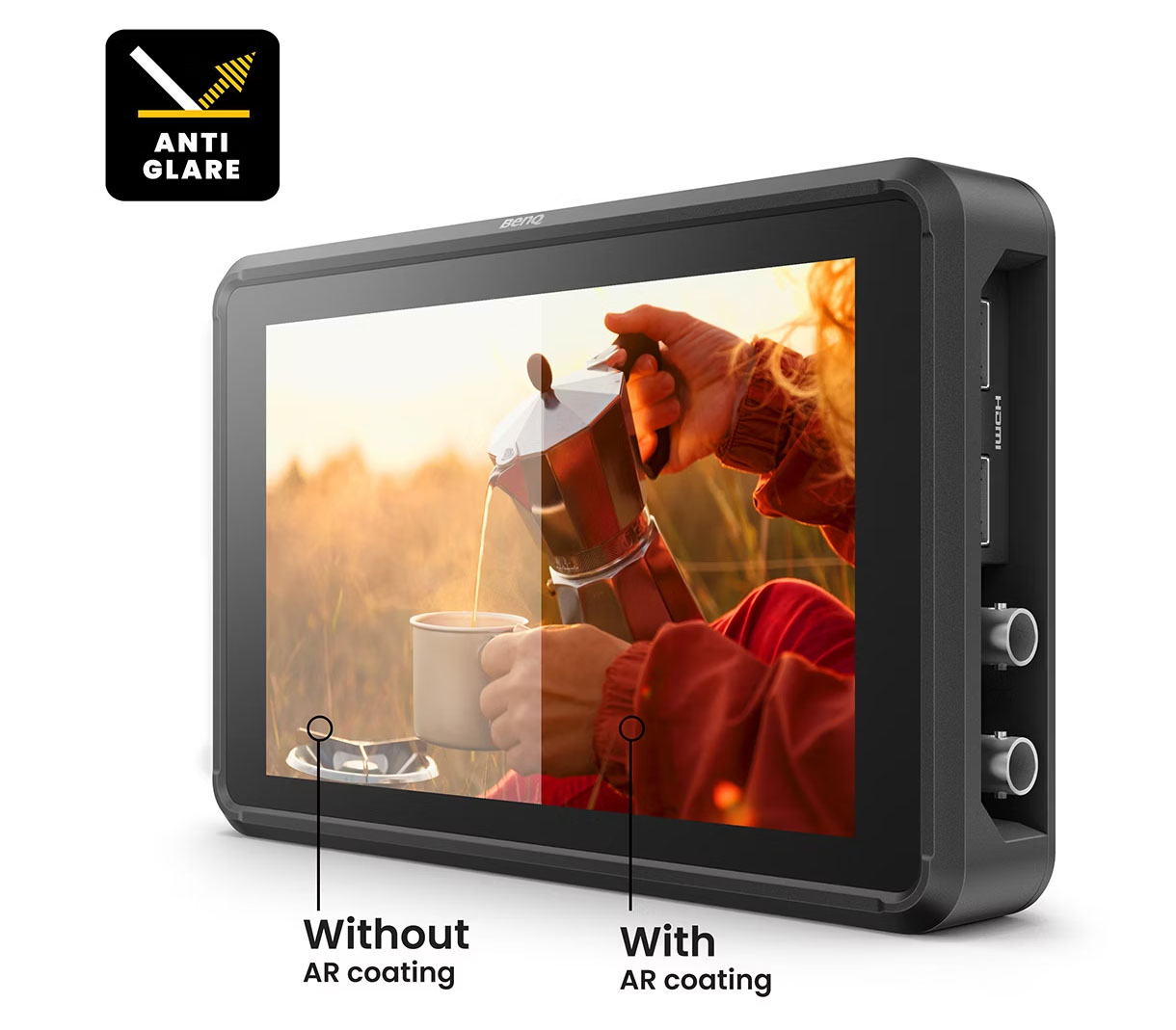
  • Touchscreen with Anti-Reflective Coating6H hardness, 5% reflection
    Enhances usability and reduces glare, plus durability against scratches and bright lighting. 

  • Durability & MountingDrop-tested up to ~1.5 m, includes protective cage & two-way sun hood
    Built rugged enough for field use, plus accessory mounting and glare control are included. 

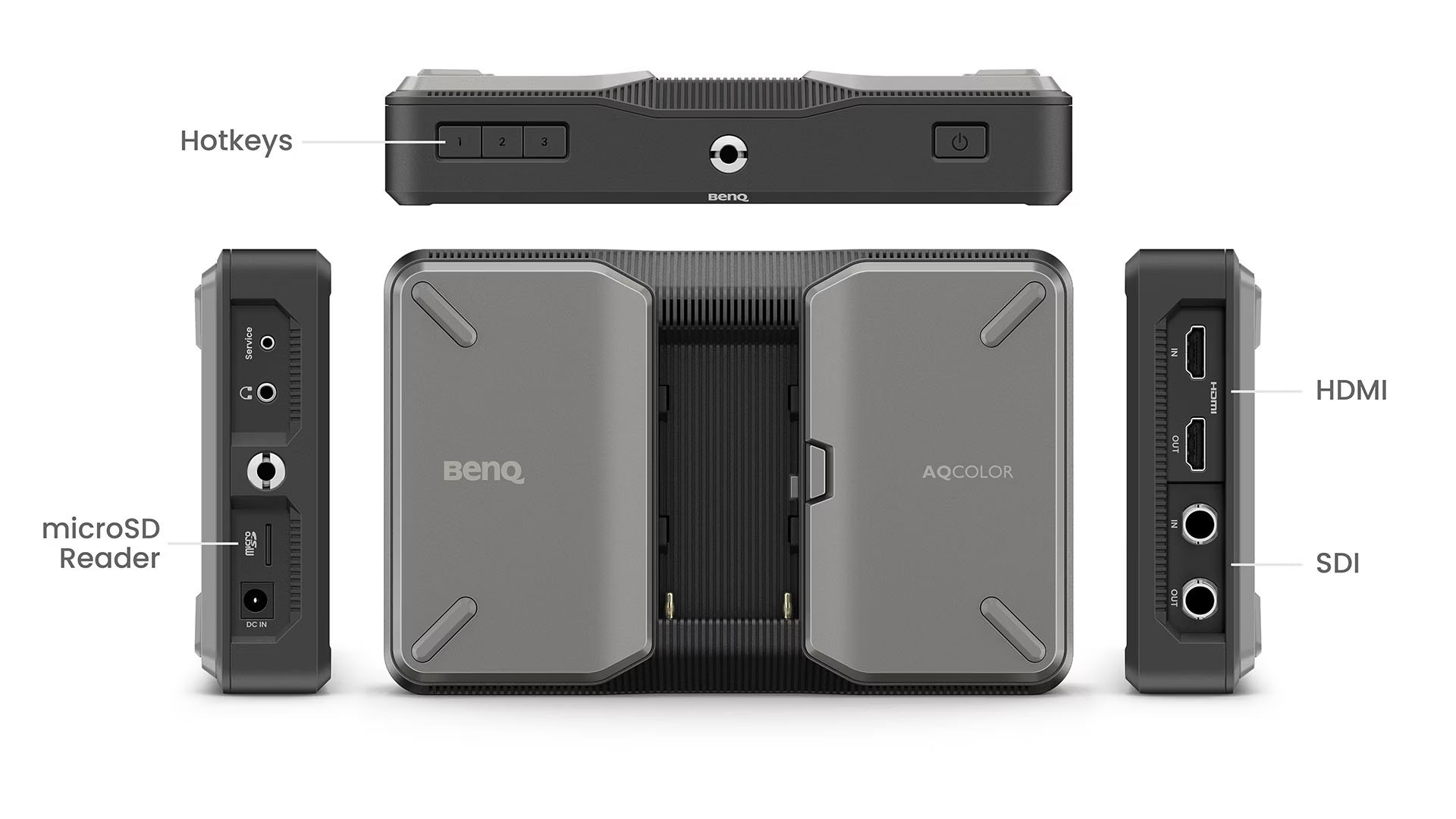
  • ConnectivityHDMI v2.0 in/out, 3G-SDI in/out, micro-SD slot
    Offers flexible input/output for professional and consumer cameras, loop-through functionality, and storage for LUTs or firmware. 

  • Power Options & ConsumptionAC adapter or NP-F/LP-E6 series batteries, 10-18 W typical, up to ~7.5 h runtime
    Flexible powering suited for on-camera use; low power draw extends shooting time. 

  • Thermal DesignFan-less with metal housing for natural cooling and silent operation
    Ideal for quiet scenes (e.g., ASMR) while ensuring stable performance and silence. 

Let’s take a closer look

First of all, the accessories.
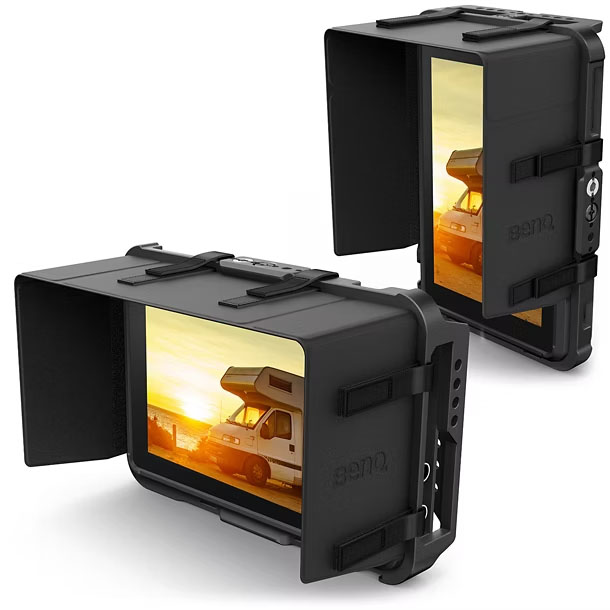
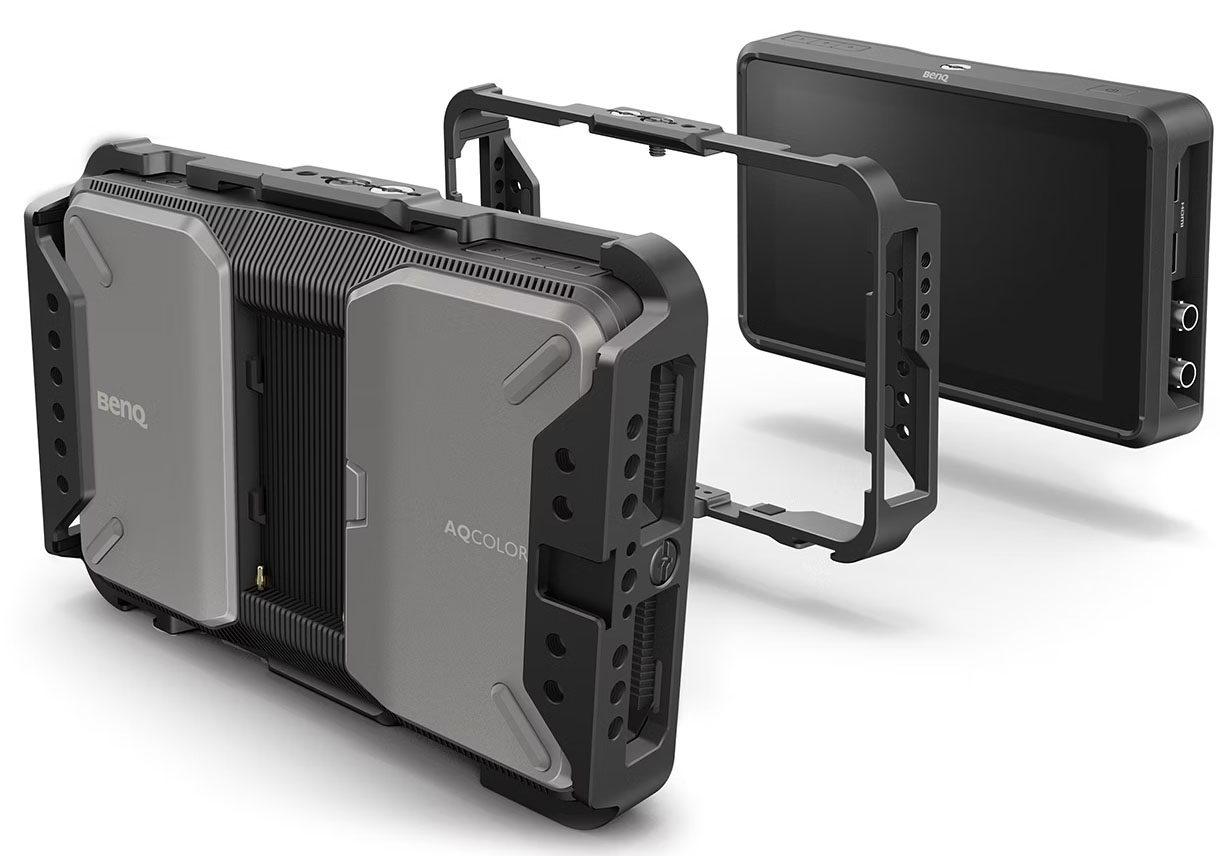
As you can see in the images, BenQ got you covered there with a solid cage and shading hood.
The shading hood can be used in portrait and landscape mode, of course.
You can mount the PVS7 on a camera, but also add it to your rig. Or use the case to build a small rig on a studio stand or tripod.

When we examine the features, they will vary widely in importance for you as the user. However, as you have already read in the specs, I think the PVS7 delivers every feature you would like to see in a display like this. So let’s take a look at the ones I use.

Features I use and are important to me

Brightness

The brightness of a screen is incredibly important.
During trade shows, you can see a lot of different displays. But don’t be fooled!. In those setups, it’s very easy to look great. Often, it’s  more dimmed light or no direct light hitting the display.
When we start using a display in location, everything changes. So, when you want to judge a screen, always take it outside. Or if that’s not possible, at least use the flashlight on your phone to check the glare on the screen. The more it reflects, the worse it will perform outside.

I’ve used the PVS7 during an episode of our digital classroom, which we filmed outside on a sunny day. My M4Pro laptop was looking ok (with the Matt screen), but the PVS7 was a lot brighter and clearer, so that part: PASSED

There were a few things I paid attention to, besides the brightness.

Ease of use

First of all, it’s always important to read the manual. Especially on devices that only have a few buttons.
That being said, controlling the PVS7 is very easy. If you have to change something on the fly and you’ve worked with the PVS7 a few minutes it already feels right at home.
This might sound less important, but especially when you work with a small team, or friends/family it’s a big relieve you are able to explain your whole setup in a few minutes.

Connections

A good monitor has the right connections.
The PVS7 is clearly aimed at most markets with both the HDMI and SDI standard.
But also audio is nicely routed through a headphone jack.
When we look at the power section, you can use a power brick or the PVS7 can run a very comfortable 7.5 hours on battery power.
You might wonder where the MicroSD card reader is for, and that’s another trick.

What you see is what you get

Color evokes emotion, and that means that it can help when you see the results directly in the colors you want for the result.
Of course, there will always be a color correction/tinting step in the editing workflow, but during the shoot, it can be very handy to have a guideline for the mood of the material.
And this is where you can use LUTs; you can load into the PVS7, giving you a direct look at the “end” result of your creative vision.

Especially for the more extreme tinting, this can make lighting a set a huge step easier.
And because you still shoot on your preferred RAW/FLAT/…. setting, your source material is of course, unaffected.

And of course you can’t judge your images if the screen is reflecting back the sun, so the PVS7 had a great anti glare coating, which you will love outside.

It’s a pro thing, I guess

The PVS7 is a professional device.
And somehow professionals are wired differently, I guess.
I remember a keynote from Apple many years ago, which actually drove me away from Apple. To come back as soon as the M1Pro was released.
So why did I switch to Windows at that moment?

During that period, Apple decided that form, and especially weight, were more important than usability.
Meaning saving 50grams but carrying around 250grams in dongles with loads of problems during trade shows with lost dongles, damaged cables, damaged ports, etc.
Who thought it was a good idea to remove a card reader and an HDMI port, for example?

Ok, rant over.
But there was a trigger for this.
One of the responses on a review at that the PVS7 On-Camera Monitor was rather thick and had a large bezel.
Yes, and luckily they did 😀
Because now we have a monitor that lasted my whole 3-hour setup for the digital classroom (2-hour live), and it did it all…. without a fan.
And that’s a big thing.
On sets, it has to be silent. Photographers have to work with blips (silencers) or silent mode, and even the click of your aperture can ruin a shot.
So having a few cameras with monitors zooming around during a very quiet scene will drive everyone in sound mad.

Or how about those videos where they talk really slow and soft into the mic to “relax” you? (I always get anxious) Having a fan in the back would be very annoying. So having a slightly thicker design but losing the fan is one of those design solutions the consumer will not understand, and the pro jumps up and down for 😀

Focus, composition, and exposure

A good monitor should give you enough information to know you nailed your focus and have a proper exposure, and not blow out highlights or lose shadow detail.
Judging everything from a screen is impossible.
We’ve done shoots in locations where I was lucky I could control my camera. Because the sweat was running in my eyes and judging focus on a video screen, even a 12″ screen would not be reliable.
So we have tools for this when shooting video.

When I use a monitor for video, I mostly use the Zebra function to make sure I don’t overexpose my subject. And I’m using focus peaking all the time.
Focus peaking is priceless. With focus peaking, you can clearly see which part of the frame is in focus. This makes it possible for interviews to see from a larger distance, even on a small screen, if your subject is in focus.

And finally, I have my composition lines always on.
It helps in quickly setting up the shot and making sure that during movement, your center stays stable.

Color accuracy

The BenQ PVS7 On-Camera Monitor supports the REC709 colorspace.
This is the standard for video work (unless you’re shooting HDR, where it’s P3/BT2020). So, perfect for monitoring your video material.
The dE (lower is better), and 1.5 is very nice, meaning your colors will look natural and accurate. Combined with the high light output and relatively good contrast ratio makes the PVS7 a great display to check your material. Add to this the option to load your own LUTs, and we have a great solution.

Conclusion

So is this a monitor for you?
If you’re working in video and shoot a lot on location, you will know the need for a monitor, and most of all that not all monitors are the same.
In the past, I have used a few different brands, and there was only one actually I kept using (yes, it was the most expensive one),  and the only real reason was light output.
For me personally, I would sacrifice almost all the features (except focus and exposure features) for extra light output.
But as we all have seen with our Phones and tablets, light output is getting much better. Which now means BenQ is able to deliver a super bright screen that also has a great color accuracy and is still loaded with features in a fanless design.

I think the BenQ PVS7 On-Camera Monitor will find its way to a lot of video guys. I know I loved testing it.
Here you can see the episode in which I show a bit more detail about the PVS7

If you are interested in BenQ monitors and live in the EU, drop us an Email for a nice discount.
We only have a limited number of codes.


Looking for a great 27″ monitor? With the BenQ SW272U you only need ONE USBC cable to your MacBook

Last year, BenQ released Plaette Master Ultimate for hardware calibration

Audio is one of the most important things in video

When the audio is bad I often stop the video

Honestly, I can watch a video with imperfect image quality, but if the audio is bad, I’m out. Audio is one of the most important things in video.
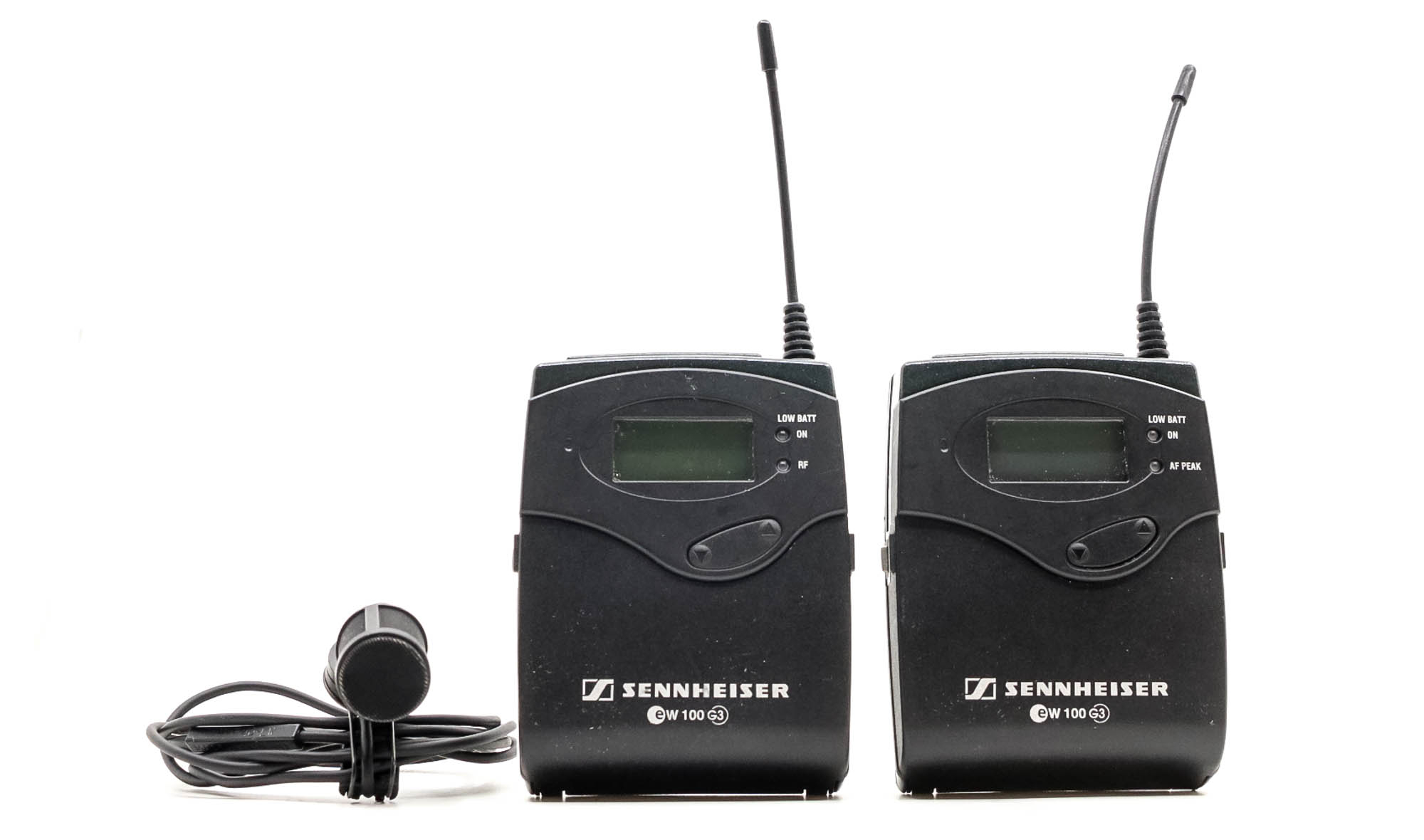
For years I’ve been using a Sennheiser wireless lavelier microphone. I always bring this to shows and use it during almost all videos and live streams. And it just sounds awesome and never fails me. But it’s expensive. And for most starting creators it will be overkill, plus in all honesty, you always have to put the wireless transmitter somewhere. It’s not a super small device. Over time I’ve had several (expensive) cables replaced.

Over the years I’ve tested several alternatives from all kinds of brands. And although some are really nice they never really pulled me away from the Sennheiser.
On most cheaper mics my voice sounds like it’s coming from a can without any bass and harsh highs. But they do have something really nice and that’s size and connectivity.

Audio is one of the most important things

My Sennheiser set never lets me down

We use different audio devices

The time that you shot video on a handycam, photos on your photo camera, etc is over.
Nowadays we use a combination of capture devices, sometimes we shoot behind the scenes or B-roll with iPhones, Osmo Pocket or a Sony A7RIII. So when you buy an audio system you have to make sure it will work on all your devices, and as easy as possible.

I think we found the solution, and I love it.

The Saramonic Blink 500+ Wireless Audio System with 2 mics

Audio is one of the most important things

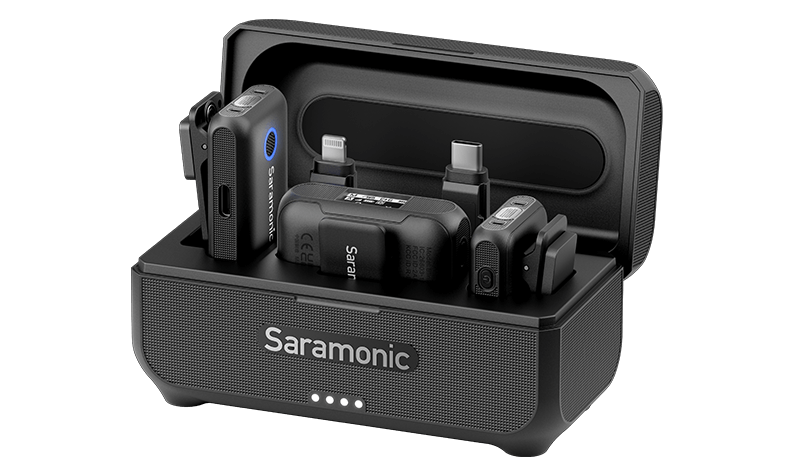
The Saramonic Blink 500+ contains one receiver unit and two wireless microphones.
And that immediately makes it a very interesting set for creators. It now becomes super easy to quickly interview someone on location (or in the studio of course). The connection is made super fast, as soon as you take the microphone out of the case (which charges everything) it is almost immediately connected to the receiver. So no more taking the lavalier off and using it as a microphone to interview someone. Just quickly give them their own mic, which also makes editing audio after the fact much faster and easier.

As mentioned before we need something that can be easily connected to all the devices we use, and the Saramonic doesn’t disappoint there.

Audio is one of the most important things

“One Size Fits All”

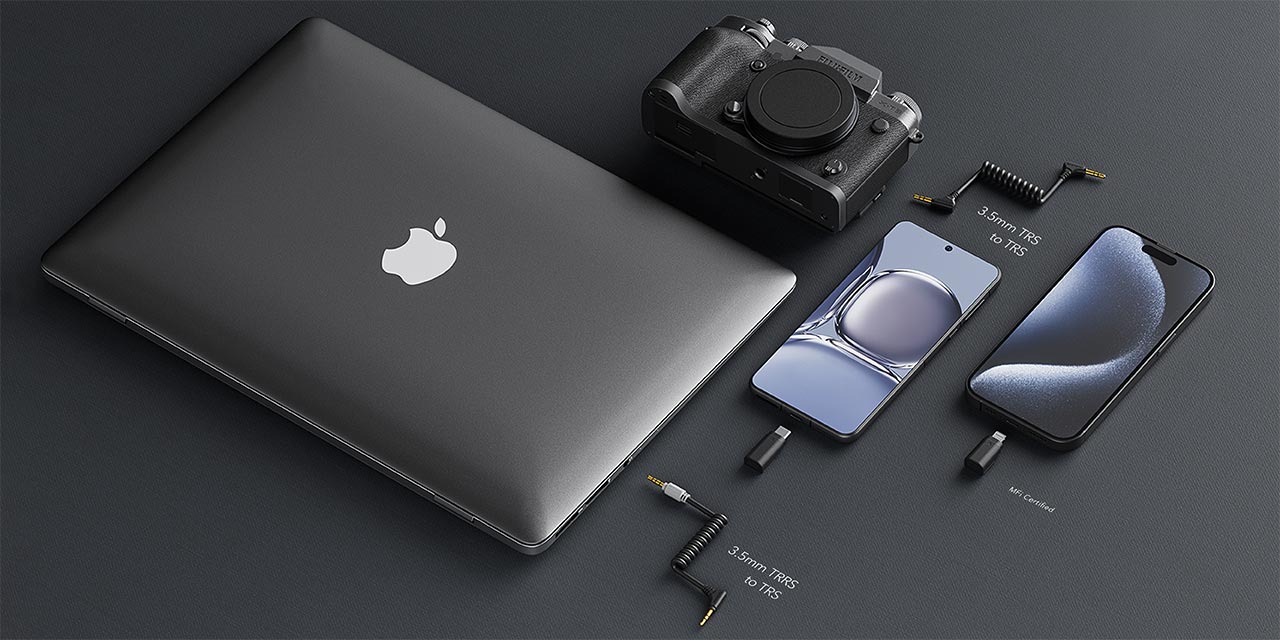
In the box, you will find different cables and connectors, and in all honesty, I think they cover an impressive array of connections.
It works just as easily on your iPhone as on a console and all without changing settings, just choose the right connector.

Always charged (well almost)

Nothing is more frustrating than empty batteries.
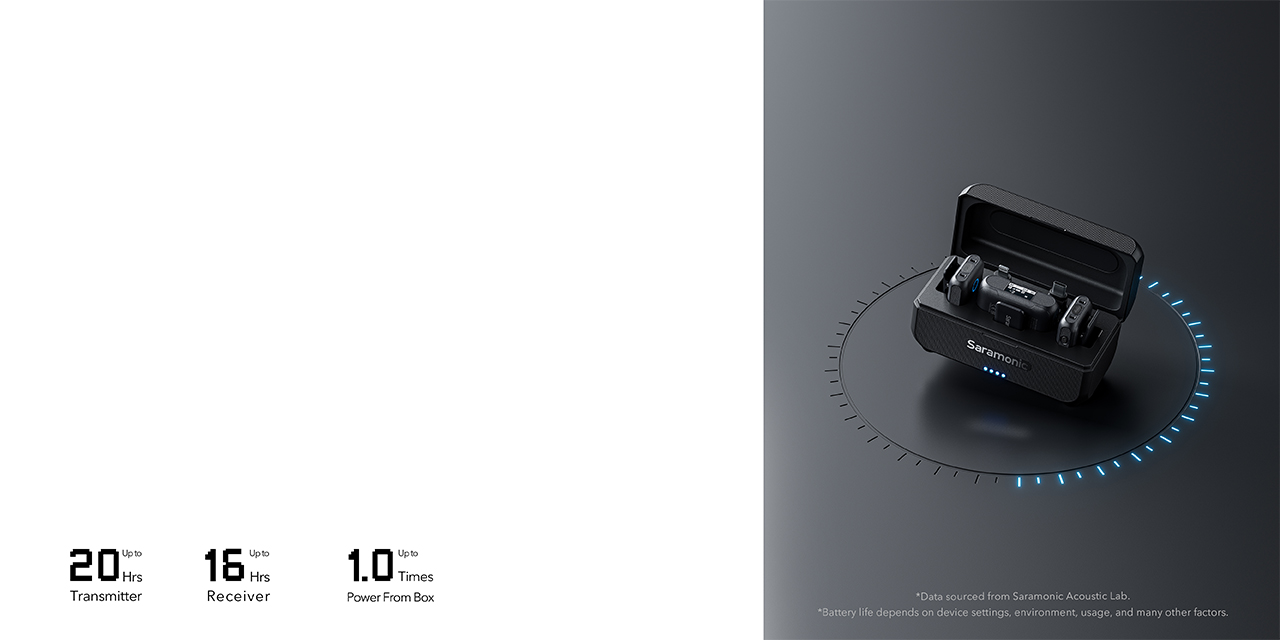
The Saramonic microphones and receiver are stored in a nice case that is both sturdy and not too big. So it will fit easily in most camera bags or even your jacket pockets. The case keeps your devices charged until you take them out. So as long as you make sure the case is charged you know you will always have a full battery when you go live. Now the first time you think about a built-in battery it might be a bit scary. With the Sennheiser, I can easily switch batteries when they run out, but with a built-in battery…. well when it’s empty that’s it. Luckily the battery time with up to 20 hours for the microphones and 16 hours for the receiver it will cover most, if not all activities.

Going the distance

A few of the sets I tested where okay when I stayed close to the receiver. But several mics became a lot more noisy or flat sounding when I walked further away from the receiver. And most even lost connection when I went to the makeup area, which is in a different part of the studio. The Saramonic promises 150 meters, but to be honest I always take those numbers with a grain of salt, and mostly it means in the open field. I didn’t test that but I did walk to the makeup room and didn’t hear any difference in audio quality, and also no extra noise, which actually surprised me a bit, but in a positive way 😀

Where to put it your mic?

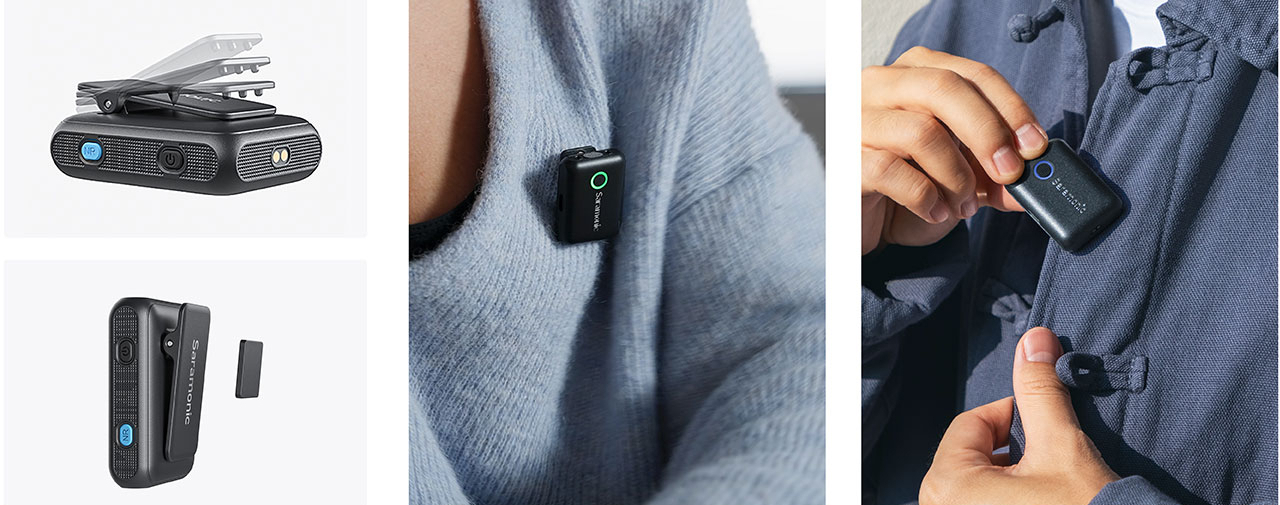
We need to place the microphone somewhere of course. With the Sennheiser I’m using a small lavalier microphone, which is great because you hardly notice it. But the disadvantage is that you also have to put the sender somewhere, and that is in most cases my pocket. With the Saramonic the microphone is larger than my lavalier but it has a huge benefit. You can clip it on your clothing, but often it happens I’m wearing a sweater where it’s not really handy to clip a microphone on. And in that case the Saramonic has you covered too, if you don’t want to clip it you can also use the magnet.

Some key specs

Of course, it’s always important to get the specs right, so here we go.
– Up to 150 meters of wireless transmission.
– Separate noise cancellation control – 48 kHz HD audio format retained.
– Wide-range 20 Hz – 20 kHz frequency response – delivers exceptional high-quality sound.
– Low-cut filter (75 Hz / 150 Hz) – cut off low-frequency noise from common.
– Up to 20 hours of operating time for a transmitter and 16 hours for a receiver.
– Comes with a windproof capsule – minimize unwanted wind noise.
– Attach the transmitter to your clothes with the included magnet.
– Receiver’s 3.5 mm headphone output – monitor your audio in real time.
– High-resolution OLED display – see vital information at a glance.
– Mono / Stereo Safety Track output setting.
– 3.5 mm TRS analog output, USB-C, and IOS Lightning digital output – universal compatibility with cameras, smartphones, and computers.
– Charging case included – make the kit easy to carry on.

In practice

I’ve been using the system for a few weeks now and can honestly say that I love it.
I find that I use a lot more than the Sennheiser. With the Sennheiser I regularly got tangled up in a cable or had fights with the transmitter during shoots. Plus when filming on location it was very uncomfortable to be always “mic-ed” up and taking the lavalier off when interviewing someone. The Saramonic solves all these irritations. We have it with us in the photo case. As soon as we want to film something it’s connected to the camera and I clip on the mic. Give the other mic to the other person and we’re ready to go. Add to this some noise reduction (although I like to edit audio after the fact personally) it’s very nice to have.
I’ve been using the system in the last episode of Digital Classroom in a live setup and it performed without any problems for the full broadcast. We didn’t lose connection once.
The problem with the live broadcasts is that it always compresses the audio so for the second part of the review I’ll create a video in which I show you the Saramonic in action with the proper quality.

Conclusion

When you want a proper 2 microphone setup that is super easy to use and works without any problems on most capture devices, gives you a good audio quality and some extra features for a very reasonable price. I would highly recommend you check out the Blink series from Saramonic, it might be the perfect solution for you.
I’m not paid for this review. We met the guys from Saramonic at a tradeshow. They gave me one of their demo units to test out.
The review was not seen by them before release and is 100% my personal opinion.

TourBox Lite, this will change your workflow forever

Does the TourBox Lite change your workflow?

Last week we received the TourBox Lite for a review. In this blog, you’ll read how it changed my workflow.

Workflow importance

One of the things I always teach during workshops is workflow.
It might sound boring but having a proper workflow is essential to get not only consistent results but also to simply save time for other important things in life 😀

When we talk about workflow we often talk about settings and the order in which you edit in Lightroom, Photoshop, or your favorite editor.
But there is a lot more.

With the release of the iPad Pro I (and many with me) thought the world would change forever and we would not need laptops anymore… well a few months later I sold my oversized iPhone and closed that chapter. But many years later I bought the 11″ iPad Pro and that changed my workflow forever.

iPad Pro 12.9″

At the moment I’m using my iPad Pro 12.9 for almost 99% of my sessions in combination with Cascable to shoot tethered, and let’s be honest, especially on location, you can shoot all day with the iPad, it has more than enough light output for outside, it’s well protected against the elements and… well it’s not about the iPad today, but it’s a game changer. The iPad Pro is an important part of my workflow.

Retouching with the iPad and a laptop

For me, most of the time is spent on retouching. Like most of us, I love taking photos but retouching… well it has to be done. Don’t get me wrong it’s a lot of fun in most cases, but in a lot of other cases it’s something you have to do and the faster it can be done the better.

In the studio (and at home) when I work in a static setup I use my MacBookPro 14″ M1Pro connected to a 32″ BenQ monitor and retouching is done via an XP-pen drawing tablet (with screen), which works like a charm. But I have to sit behind my desk.

Sometimes I also want to edit on the couch. When traveling, in a hotel, and sitting behind a desk is not always ideal. Having a laptop with a touchpad is doable but not for everything. You just need more control sometimes, especially with selections or skin retouching.

Luckily Apple has a great solution for this.
You can connect your iPad to your MacBook and use it as an input device. In fact, I’m having my MacBookPro on the table and holding my iPad and Apple Pencil on my lap.

Full Photoshop on the iPad

Well ok, there is an app on the iPad called Photoshop. Although it gets better every release, it’s a far cry from the desktop version. So to do proper retouching I still need the full version of Photoshop (at the moment). This is where the connection between the iPad screen and MacOs works like a charm, there is however one HUGE disadvantage.
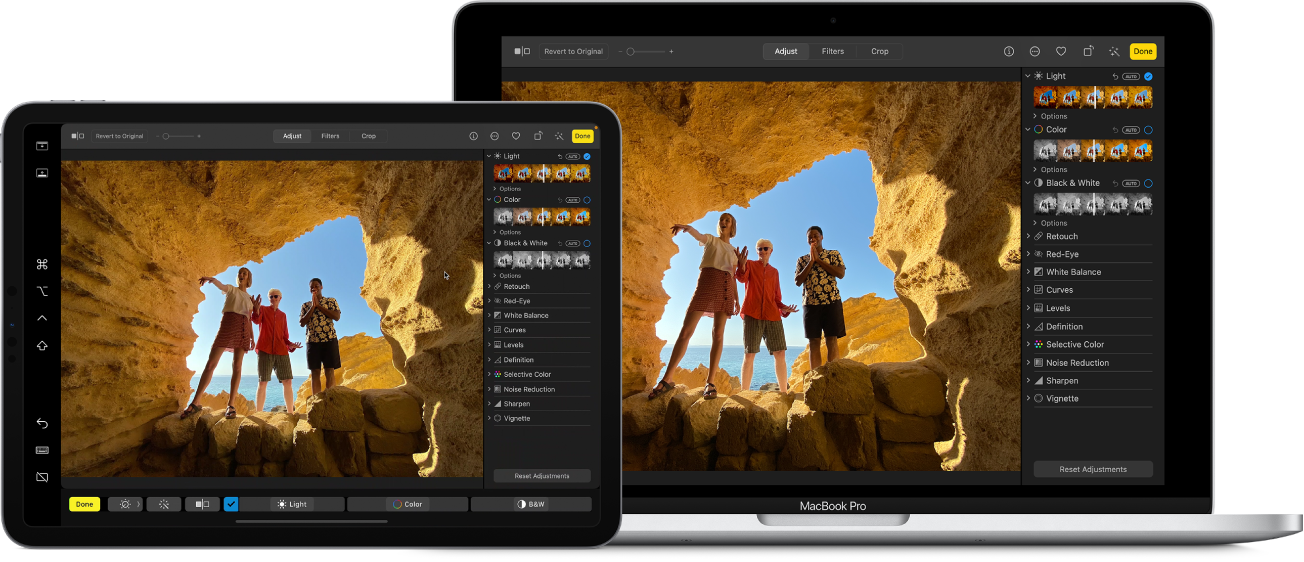
the iPad is an important part of my workflow

Where are my keys…. oh there

As you can see in the image the iPad mirrors the MacBook and when using an Apple Pencil retouching becomes really close to using a real drawing tablet. Some things are a bit “wonky” but overall it’s a huge improvement over using the touchpad and especially on location this is the biggest improvement in your workflow in years.

But…. we all know that for Photoshop we also need key input.
Try to use Photoshop just with a pen and you will within seconds find out that you can’t do anything. For almost everything, you need keystrokes. Now luckily Apple knows about this so they offer a floating “keyboard” with the most used keys like COMMAND, CRTL, SHIFT, SPACE, etc.

I don’t know about you, but I like it because there is nothing else. But it’s far from perfect. You don’t feel the keys, they take up space and on the iPad screen size is something I don’t want to sacrifice.

Hardware solutions

Over the years I’ve tried several input devices and although they all promise that you will speed up your workflow 10-fold and everything is easier and…. well you know what I mean. In real life, I never really found something that stayed.

Most of the devices I tried are too light, meaning they “walk” over my desk, adding some anti-slip feet helps but it’s something I have to add myself. Other devices were not well-formed which meant I had to move my hand too much and because most buttons had the same form I still needed to look at the device, which made the device useless for me because I could as easily just use a keyboard.
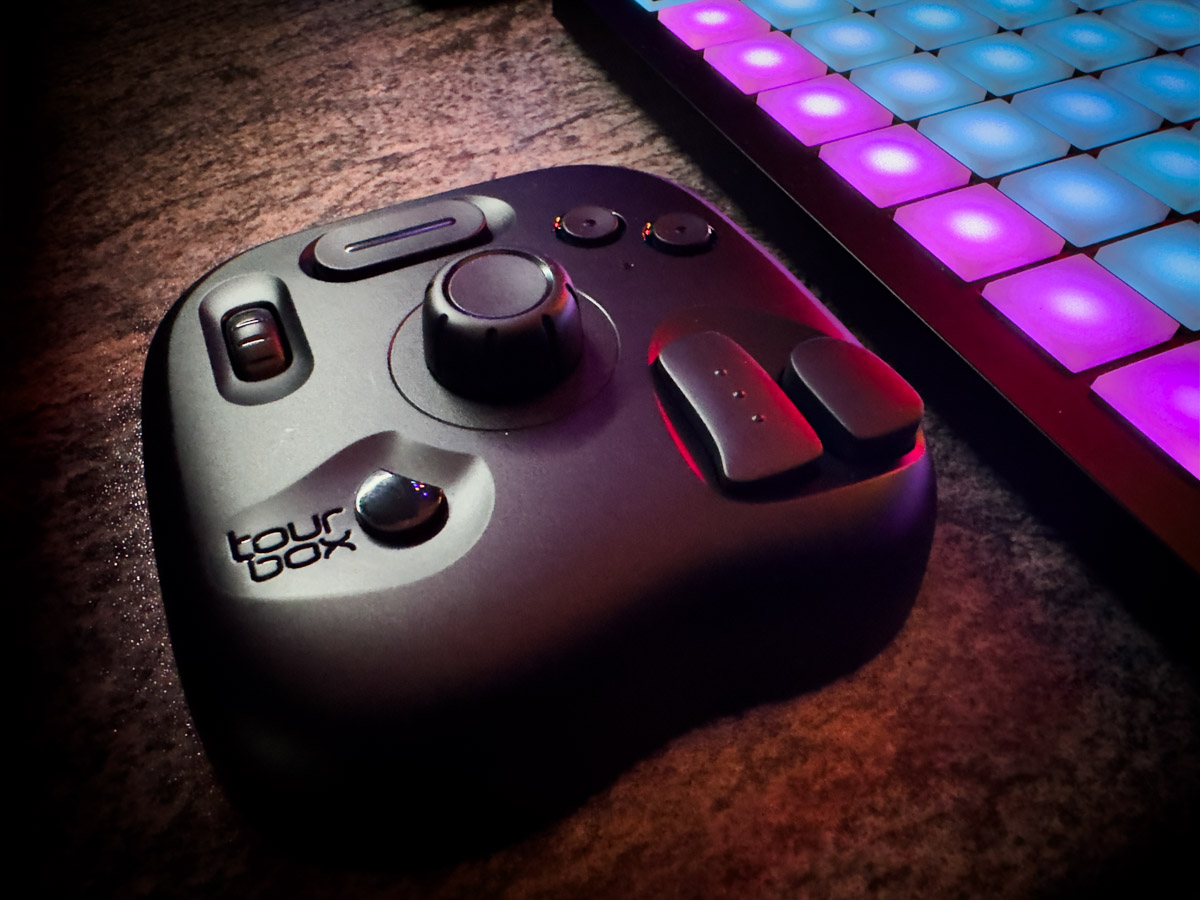
The TourBox Lite changed my workflow

The TourBox Lite changed my workflow

TourBox Lite (2024)

I think I found the perfect solution to improve my workflow.
A left-handed device (yes, read on if you’re like me right-handed). that just hits the nail on the head.

The TourBox Lite is the newest addition to the TourBox family and retails for just under $100 which in my opinion is a very critical price point.

When unboxing the first thing that caught my attention was the weight.
You expect something from that size to be a lot lighter, now I’m not saying it’s TOO heavy, in fact, it’s perfect.
It doesn’t move around on my desk and it’s light enough to carry around easily in your backpack.

At first glance compared to some other products you might think “There are not a lot of buttons there”.
But let’s be totally honest with each other.
This is NOT a keyboard replacement, it’s a workflow device, and when you look closely at what you really need I have to be honest that I don’t really miss any buttons.


TourBox Lite workflow advantages

One of the cool things about the TourBox series is that you can add app 100 actions to the buttons.
They make this possible by using combinations and also double clicks.

I’ve been testing the TourBox Lite for a few days now and for example, in Logic Pro I’m using the double click on the play button. One time means STOP/PLAY but double click means GO BACK TO START. This is an action you use all the time and having it under one button is just genius and feels very natural.

For Final Cut Pro and Lightroom/Photoshop, I’m using the scroll wheels to zoom in and out and change the brush size and that speeds up your mobile workflow a lot.
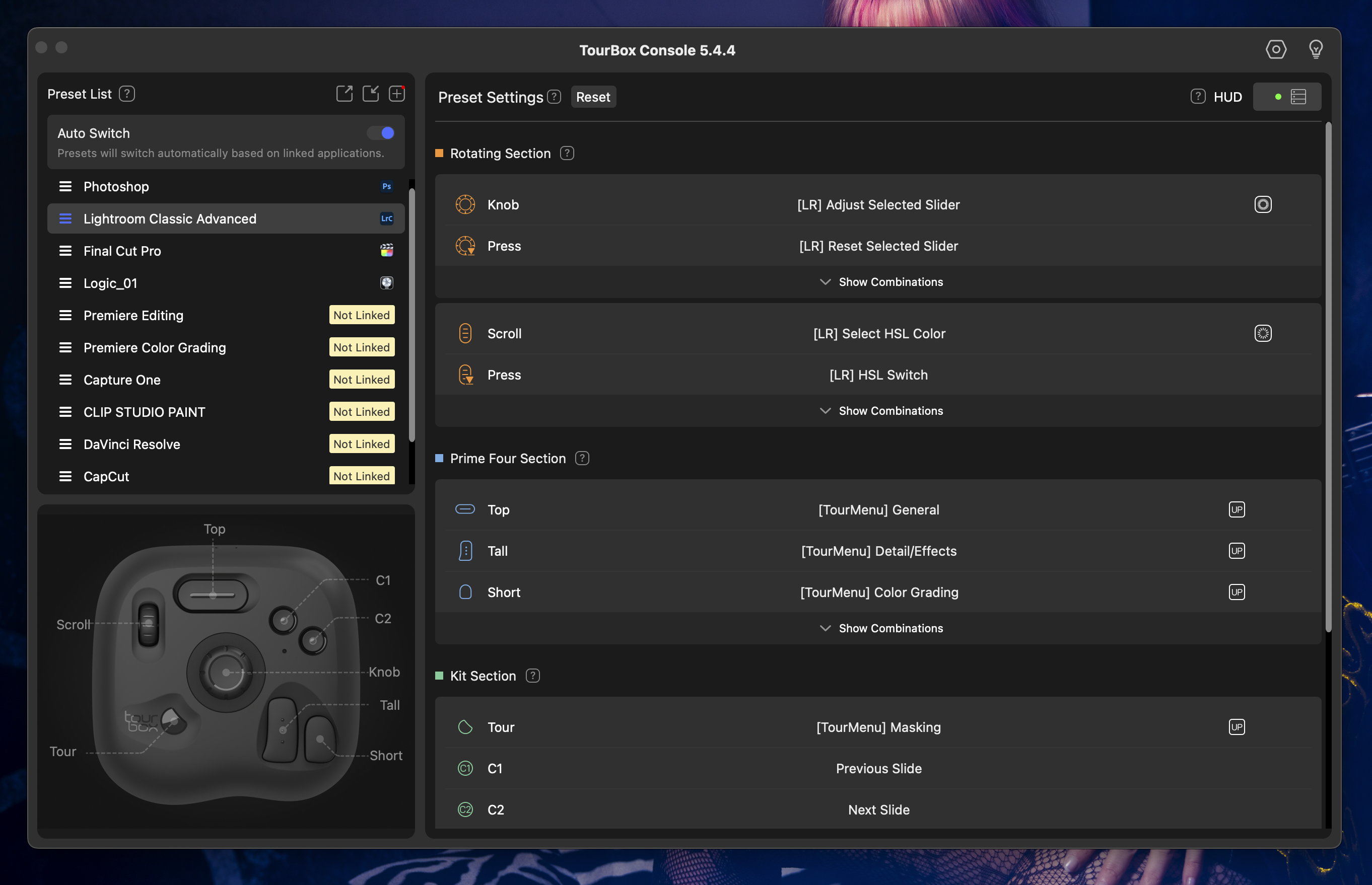
TourBox lite console

More options

I started this blog post with a story about how the iPad changed my workflow and the TourBox Lite is for me a huge upgrade. I can now just leave my laptop on the table (or floor) and use the iPad Pro with Apple Pencil and the TourBox Lite to work through my whole session without ever needing to touch my laptop. This is huge 😀

But when I’m not using the iPad Pro for retouching I still have it next to my MacBookPro and use it for almost all software I use. The fun thing is that with the other devices I tested I always found out after a few minutes I was using the keyboard and actually forgot that I also had another input device.

The TourBox Lite is designed for left-handed use, and that’s genius.
I’m mostly holding my XP-pen or Apple Pencil in my right hand and my left hand is free to operate the keyboard. But also when adjusting parameters when using Logic Pro and holding a guitar, having the right hand free to hit the strings and the left hand to adjust is really comfortable.

Of course, you can use other devices also with your left hand. But this is I think where I like the TourBox Lite more. Because I don’t have to move my hand. I position it and it hardly has to move. Another huge advantage is that all buttons feel slightly different. My other device uses mostly the same buttons where you have to put stickers under to see what you’re doing. Well in a dark studio, this already doesn’t work and often ends in frustration. And that you only use the dials and buttons on the keyboard, which I think is not the way it should be 😀

So many options, so little time

You probably already picked up that we can program A LOT of combinations but how do you remember everything?
For me, that’s always been a problem.
When I start with a new software suite I try to first learn the most important keystrokes. And luckily it’s often pretty straightforward. But even with a normal keyboard, especially at the start, you have to sometimes look up the keystrokes.

With these kinds of devices for me, that’s always a problem. On the keyboard, I can mostly find my most used keystrokes but when you use several suites at the same time it can become really messy with input devices.

The TourBox software has a really nice option where you can link software to the TourBox. This means as soon as you open the software it will open the preset on your TourBox too. This makes it easy to switch between software but doesn’t solve my problem of remembering what is what.

You can of course just try or maybe even have the editor open on another screen, but I actually love the way TourBox chose to use a HUD solution that can be customized, moved around, and setup exactly the way you like.
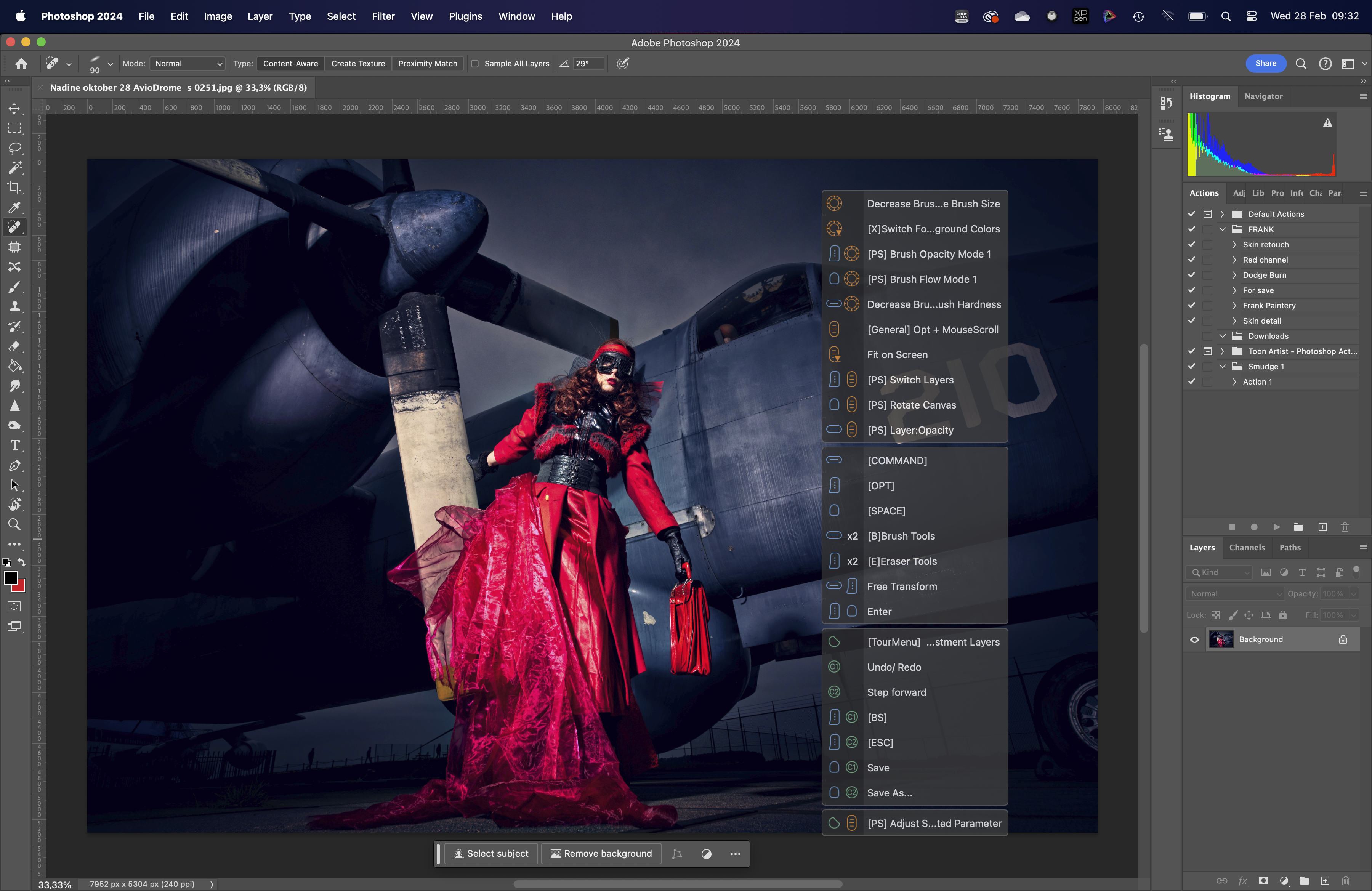
When you press a button it will also show up in the HUD.
Now in most cases you will probably only use the HUD for a few days or weeks, after which it should probably be a matter of feel and muscle memory.

In conclusion, did the TourBox Lite change my workflow?

The new 2024 TourBox Lite is a very interesting input device.
It’s small enough to be used on the couch with your iPad. But it has enough buttons and combinations to even help with more complicated workflows.

The price point is spot on, but you sacrifice a bleutooth connection and some extra buttons that you can find on the Elite. But if you have no problem with working with a USB-C cable, I don’t see an issue there.

Are there things to improve…?

Yes of course 😀
I would love to see a small backlight at the buttons. I mostly work in light-controlled areas which means that the TourBox is located next to my keyboard in the studio and there is hardly any light hitting that area. Because all the buttons feel different it’s not a big deal, but it would be nice, and shouldn’t be a problem seeing the TourBox Lite is connected via USB-C anyway.

For me, the TourBox Lite hits the nail on the head.
It has enough buttons, the right price point, great software, auto switching apps, HUD, and of course well designed so you can use it with one hand and minimal movements (great for long hours of work).

I lost my interest in this kind of devices but this one has shown me that it can be done right.

HIGHLY RECOMMENDED.
Also, want a Tour box?

When you use this link for your order, you also support our work: TourBox Lite

For BenQ we have a 10% discount code for European customers, if you are in the market for a new monitor, drop us an email for the discount code.


Disclaimer:
I was sent the TourBox Lite by TourBox to check out.
ALL reviews I make are 100% my real opinion and not motivated by manufacturers, our readers demand and deserve a real and honest review and that’s what I do.

That beautiful old glamour light, nothing like it.

I’ve always loved one certain lightsource.

The Fresnel
It’s actually a funny story, one of the first times I demo’ed during a trade show I was actually using a Fresnel as a prop and also several demos as a main light source. And although at that moment in time I was not really yet into the more classical looks I immediately fell in love with the awesome look of the Fresnel.

The look of the Fresnel is really hard to describe (that’s why I use images), but it’s almost immediately recognizable.
Think about almost all the old black and white (and later color) images from the movie stars from the golden era and you immediately know what I mean right… well that era was dominated by the Fresnel look, you found them everywhere in studios. But now a days I hardly see them anymore. Mostly due to price but also I think because people just don’t know the funny looking Fresnel.

I always describe it like a mix between a very hard light source and a nice soft beauty light effect (told you it was unique and hard to describe)
The main thing about the Fresnel is however that it’s not a light source you can use in one way, you can actually zoom the modifier to create a wider or more narrow beam of light, but in some Fresnels you will also get a very nice/nasty spot in the center of the light which can be terrible (just zoom back a little) but if you really want to draw the attention to a model and she/he is sitting still it can work great.

As you probably guessed by now the main thing about the Fresnel is the lens. You probably already have several Fresnels in for example your speedlights, although often in speedlights they are more rectangular, or if you’re an avid nature photographer you might once experimented with a Fresnel lens in front of your speedlight to “throw” the light a lot further and lighting birds or other wild life on distances you normally could never use a strobe. The Fresnel makes it possible due to the unique design of the lens, and the fact (with studio lights) you can zoom the lightsource to create totally different looks depending on how the light hits the Fresnel.

On the other side of the spectrum (zoom the other way) you get a much wider and beautiful hard/soft quality of light. It does give deep crisp shadows but not with the intense look you can get when using a reflector with grid. It’s a more friendly light source with a bite 😀

Now you might wonder :
“why didn’t you use it more before?”
Very valid question.
The thing a lot of people don’t realise is that 95% of my portfolio is shot during the workshops I teach, events we visit for workshops etc. And when I teach I don’t think it’s very handy to demo setups with modifiers that nobody can afford, yes indeed a Fresnel can be incredibly expensive.

Nanlite Fresnel
Recently I started testing the Geekoto strobes and because these use a Bowens mount I was looking at modifiers and actually found that Nanlite was selling a really nice looking Fresnel for under 150,00 euros which is pretty cheap seeing I bought a theater spot online for 150,00 used and using that one with strobes is far from a working solution, well ok it works but it’s not something you easily setup, using two stands te be able to zoom for example 😀 so the idea of having something that works like a Fresnel for under 150,00 really caught my attention. So we ordered one.

The images you see in this blog post are all done with the Fresnel as main light source and as you can see they have that really nice Hollywood like style light quality.

For portraits like these the Fresnel is a great lightsource.
Add some accent lights for extra depth and you can keep them in color or convert them to Black and White, whatever your taste, the Fresnel will look great.

But it doesn’t stop with portraits.
I also love to use it for a more rough looking full body shots agains for example seamless. The shadows are very defined and sharp and you can play with them by angling the light and really create a nice combination of model and shadow.

As you can see here the Nanlite Fresnel has more than enough reach to light a full body model from app 3 meters distance, and the cool thing is of course that if you can really fine tune the look of your images by simply zooming the Fresnel.

Lets take a look at a few more images I shot with our model and awesome stylist Nadine.
All done with the Fresnel as main light.

But let’s take a quick look at the next blog post.
Because believe it or not, I used the Fresnel also for these shots….

Conclusion
For me the Fresnel is one of those light sources a lot of people don’t really know about but when they see it…. let me put it this way, since I’ve been using it several students immediately bought one after the workshop. So I think it was a logical solution to also add the Fresnel to our webshop.

On our webshop you can find of course our tutorials, books and presets, but also our own products IQwire tether cables (5-10mtrs), ClickPropsBackdrops, Rogue, Expoimaging and Geekoto but we also created a special category for the Nanlite accessories I’m using myself.

Here is a link straight to the Fresnel.
We can ship it ourselves in the Benelux, for outside orders check the Nanlite website for dealers in your area.

Our Geekoto GT200 on the Nanlite Fresnel